Always-On Display (AOD) often comes in handy for people who frequently check the time, date, notifications and other information on their phones. It eliminates the need to unlock the device for these petty purposes. Undoubtedly, it is a useful feature, but do you ever wonder how much battery it consumes throughout the day? Read this post to find out. Here, we will discuss how Always-on displays affect battery life. We will also explore whether keeping the feature enabled is worth it. Let’s dive in…
Always-On Display Battery Drain: How Much Power Does It Actually Use?
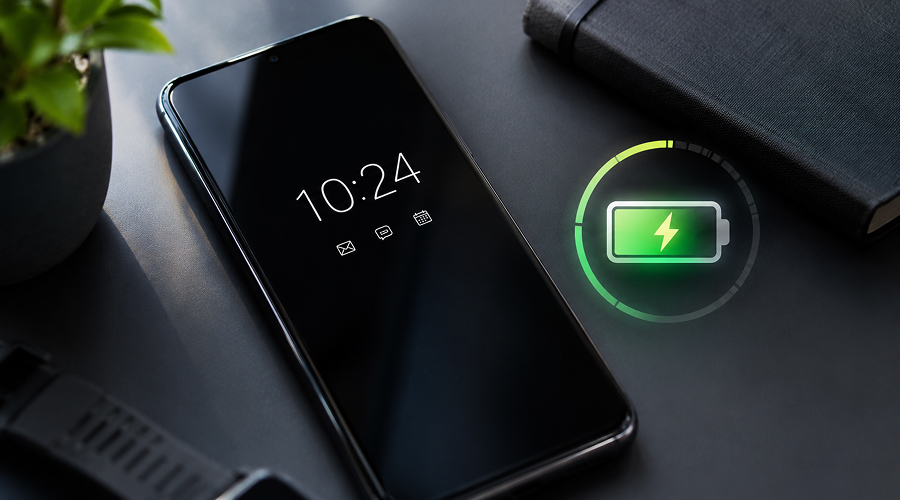
Definitely Always-On Display uses battery. This is because a part of your phone’s screen stays active even when not in use. However, the actual power consumption mainly depends on your phone’s display technology, brightness, refresh rate and Always-On Display settings. Modern smartphones are designed to consume little power even when AOD settings are enabled. As a result, its impact on battery life is usually small.
1. Average Battery Drain Per Hour and Per Day
Today, most modern smartphones come with OLED/AMOLED displays. These displays offer bright colors and sharp visuals while ensuring better power efficiency. Always-On Display (AOD) typically consumes about 0.5% to 1% of battery per hour on OLED/AMOLED smartphones, depending on the settings and phone model. 3 no halThis means it may use roughly 5% to 10% battery over 10 hours, depending on your phone. In some phones, AOD may consume around 1.5% battery per hour. That amounts to around 15% of total battery in ten hours.
These figures are only estimates, and actual battery consumption varies from phone to phone. Some devices use less power, while others consume more when AOD is enabled.
2. AMOLED vs LCD: How Display Technology Affects Battery Usage
The type of display also determines how much power an AOD enabled phone consumes. Let’s understand this with these differences:
LCD displays are backlit. This means that they use a backlight to illuminate the screen, display images and text on the screen. As a result, AOD enabled LCD smartphones often consume more power.
AMOLED displays are the newest kind of displays. They are designed to be more power-efficient for Always-On Display. Unlike traditional LCD screens, AMOLED panels can switch off individual pixels. This means only the pixels displaying information, such as the clock and notification icons, need to light up. The remaining pixels stay off, saving power.
3. Static Clock vs Full Always-On Display with Wallpapers
Different AOD settings consume different amounts of battery.
A simple AOD showing only the time, date and small notification icons often uses less power. This is because fewer pixels remain active. As a result, the phone uses less power.
However, the ones with full always-on display often consume more power. This is because users can display wallpapers, colorful backgrounds, music information and additional widgets on the AOD screen. It increases power consumption because more pixels remain active.
Pro Tip: If you want to save battery while AOD is enabled, choose a static layout. Avoid displaying a full-screen wallpaper.
4. How Brightness, Refresh Rate, and Notifications Affect Battery Drain
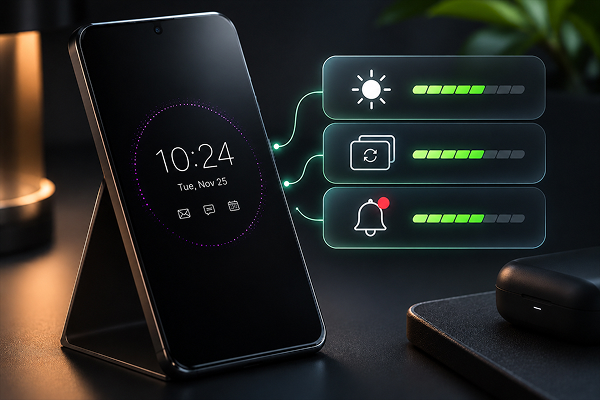
Some display settings can also affect how much battery the Always-On Display consume, such as:
- Brightness: Higher brightness requires more power. Keeping your AOD brightness high at all times can lead to battery drain.
- Refresh Rate: Some phones reduce the refresh rate to 1Hz when AOD is on. This means the screen refreshes less often and uses less power. However, phones without this feature often use more battery.
- Notifications: Notification icons generally use little battery. However, showing more information, animations or frequent updates can use more power.
- Screen Activity: Some phones automatically turn off AOD when kept in a pocket, bag or dark place to save battery. However, phones without this feature may drain more battery.
5. Always-On Display Battery Consumption on iPhone vs Android
Both iPhones and Android phones offer Always-On Display feature, but their battery consumption vary significantly.
Apple introduced Always-On Display with its iPhone 14 Pro models. It can show the time, widgets, notifications and a dimmed wallpaper even when the screen is locked. The best thing about Apple’s AOD feature is its battery-saving design. The display automatically adjusts its brightness and turns off in certain situations.
Android phones, on the other hand, offer different Always-On Display (AOD) features depending on the model. Some phones show only a basic clock, while others offer colorful designs, wallpapers and notification details. Phones with full AOD often consume more power.
However, neither iPhones nor Android phones always use less battery. Power consumption also depends on the display technology, software optimization and the settings you use.
6. How Always-On Display Affects Overall Battery Life
Always-On Display undoubtedly adds to your phone’s daily battery consumption. However, it is still not the biggest reason for battery drain ever. Your phone’s model, make, features and how you use your phone play an important role.
Activities such as gaming, video streaming, navigation, mobile data usage, and demanding apps often consume much more power. Besides that, keeping AOD enabled for long hours may reduce your overall battery life if your phone is old.
Pro Tip: If you need to charge your device multiple times in a day, then turning off AOD is the best way to save some power.
Always-On Display vs Tap-to-Wake vs Raise-to-Wake
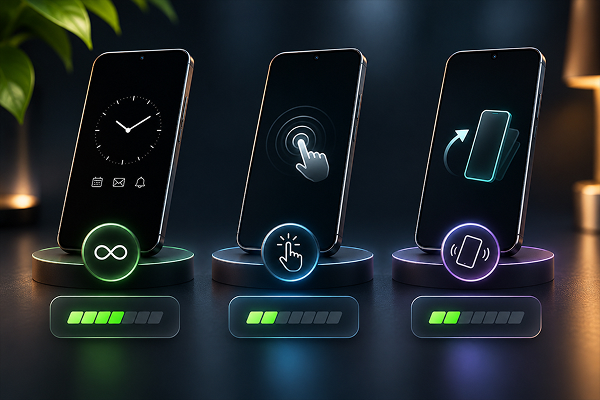
All three features let you check your phone without unlocking the display. However, they work differently and have different battery requirements. Here is the comparison:
| Feature | How It Works | Battery Usage |
| Always-On Display | Shows basic information continuously | Low but continuous |
| Tap-to-Wake | Turns on the screen when you tap it | Very low |
| Raise-to-Wake | Turns on the screen the moment you lift your phone | Very low, but depends on usage |
Always-On Display lets you check the time and notifications without unlocking your phone. Tap-to-Wake and Raise-to-Wake can help save battery, but you’ll need to tap the screen or lift your phone to see the information.
How to Reduce Always-On Display Battery Consumption
Here are some simple tips to reduce battery consumption even with AOD on. Take a look…
- Use a simple clock layout, instead of colorful wallpapers and unnecessary widgets.
- Keep AOD brightness low or use automatic brightness.
- Enable AOD only during the hours you need it.
- Turn on pocket detection or sleep settings if your phone supports them.
- Limit notification settings to only important messages.
- Use the lowest available AOD refresh rate (if your phone supports them).
- Disable AOD if you are traveling, running low on battery or trying to extend battery life.
These small changes can help you enjoy the benefits of the AOD feature without putting unnecessary pressure on your phone’s battery.
Should You Keep Always-On Display Enabled?
It totally depends on your usage habits and battery needs. If you need to check the time, date and notifications, pretty frequently, then keeping AOD enabled is wise. It reduces the need to unlock your phone frequently.
However, if battery life is more important to you, then consider turning it off. It can help you save power. This is particularly useful for people who already have an older phone or a device with limited battery capacity.
If you plan to buy a new smartphone, choose one with an AMOLED or OLED display and an efficient AOD mode. Also, check if it offers auto brightness, a low refresh rate and scheduled AOD settings. Before making a decision, use a phone comparison platform to compare different smartphones based on display technology, battery capacity, refresh rate and other important features.
Putting it all together…
So, this is all about how much battery an Always-On Display feature consumes. AOD is undoubtedly a useful feature for people who tend to check time, date and other basic information pretty frequently.
Modern AMOLED and OLED smartphones support this feature pretty well. Its actual power consumption; however, depends on your phone model, display settings and usage habits. If you enjoy checking information without unlocking your device, then keeping it enabled is fairly reasonable. However, if you want to maximize battery life, then consider using a simple clock or switch to Tap-to-Wake.