Everyone wants a smartphone that is incredibly speedy, runs apps swiftly, and has the longest battery life. After a few months, we discovered that the phone is not as quick as it was in the past. We would have purchased a brand-new, glossy phone that works much faster and lasts a few days on a single charge.
Listed below are some strategies to help you get the most out of your phone’s performance and extend its battery life.
Clear your cached data
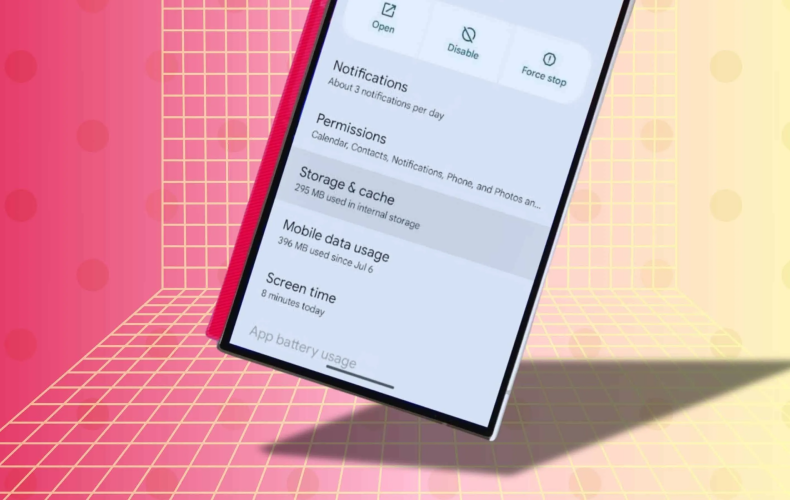
The limited storage on your phone might soon fill up. The programs you frequently use generate new files to store data. These short-term data files are called caches, and they take up a sizable portion of the storage space on your Android phone.
Generally speaking, you don’t need to tamper with cache files, which are crucial. On the other hand, you can clean up your storage by manually deleting cache files from your phone.
Clearing your phone’s cache can help you save storage space in the near run. However, since new cache files are generated each time you use apps, this is only a temporary fix. Old cache files can occasionally get corrupted. When this occurs, apps may begin to encounter issues. Deleting the corrupted cache files can solve these issues.
Turn off unwanted features
Animations and transitions
There is a trick that can help you on a daily basis: disabling transitions and animations. More precisely, these are the effects that appear as you navigate between screens or apps; they are superfluous but might be visually appealing. Disabling them will speed up transitions.
Sounds and vibrations
Although sounds and vibrations are meant to simulate the action of a real button, they are typically very annoying. Worse, they will affect the autonomy of your gadget. For this reason, you should consider whether this function is truly beneficial to you. Otherwise, you ought to deactivate it.
Adaptive Brightness, Bluetooth, and other options
You may choose to activate the adjustable brightness feature based on the mobile usage scenario. It could deplete your battery if you turn it on every time.
Similar to this, you must only activate Bluetooth, Location, and Hotspot when you are actually using them; otherwise, your battery will run out of power more quickly.
Create a backup of your gallery on your PC
This is a prevalent issue with Android. You won’t be able to install new apps from the Play Store after your storage space runs out, and in certain situations, you won’t even be able to take photos or videos. Additionally, your phone will frequently hang or slow down, and occasionally some of your apps won’t open at all.
Making a full backup of all your pictures and movies on your computer is the easiest way to deal with this situation. After that, check your gallery to remove any unnecessary images and movies. If you don’t mind, you can also choose to remove every single image and video from your phone.
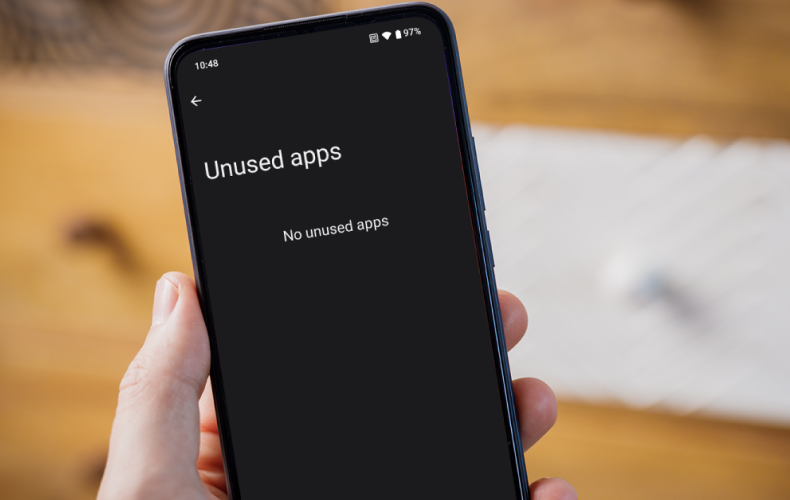
Keep the apps you regularly use, uninstall the rest
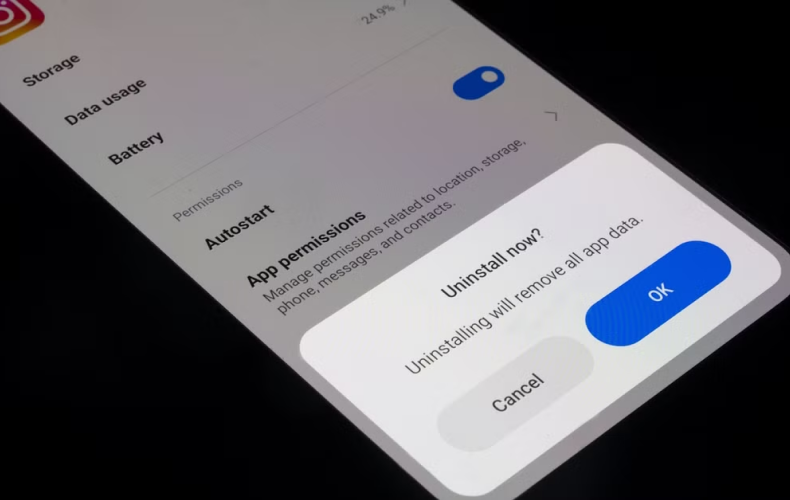
You should only keep the apps you use every day, according to almost all Android tips and tricks guides. Doesn’t it seem apparent? If something were free, would you keep it in your home? These kinds of things frequently clog our houses, but do we really need to do the same with our smartphones?
Numerous apps that you have loaded on your cellphones are constantly running and require an internet connection to function. Additionally, if you don’t utilize these apps, they will merely strain the hardware and raise data costs. Eliminating these apps would be a smart step toward speeding up your phone.
Keep your stuff in the cloud, free your internal memory
Switching to online storage is the next generation of phone storage optimization. You may save all of your mobile application data, images, videos, and documents in cloud storage, giving your phone a lot of extra space.
You can save enough data with the basic free subscription, which includes Google Drive and many other cloud storage apps.
You can remove the unnecessary files from your phone once all of your files are stored on the cloud. If necessary, you can download it to your phone at any moment with just one click.
Many of your most-used apps, such as WhatsApp, have the ability to automatically back up your data. All of your conversations and files are safe in your Drive account once you log in and set up your Google Drive account.
Restart or reset your phone:
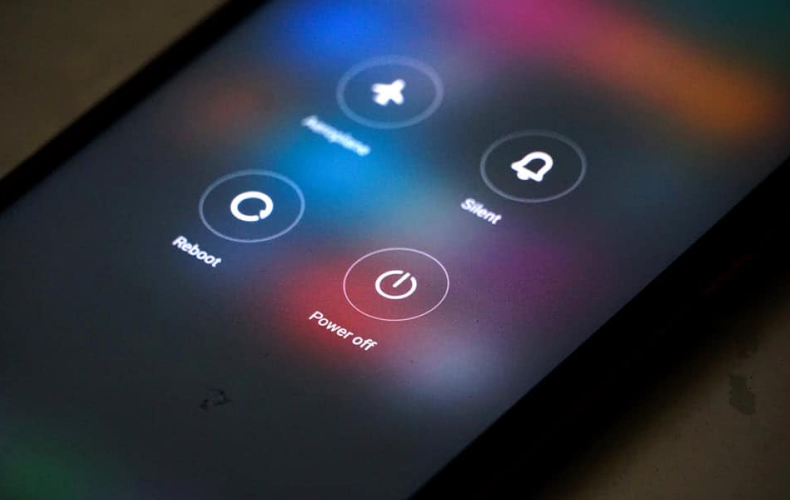
Your life might come to an abrupt stop when your phone freezes. Having a go-to repair for getting back up and running is useful. Try the following fixes if your phone stops working or displays a fatal error.
Restarting your phone is preferable if the screen is frozen while it is on.
- If your phone is a recent model, you can restart it straight away by holding down the power button. To restore your phone to normal, select the restart option.
- You might have to switch off your phone, wait a few minutes, and then manually turn it back on if your phone model is a little outdated.
- If you are unable to force a restart, remove the battery. If, for whatever reason, you are unable to restart your smartphone, remove the back cover, remove the battery, replace it, and turn on your phone to restore normal operation. This might need technical support for most phones.
Apps that are causing your Android device to freeze should be deleted. Your phone is most likely contributing to freezing if a particular app keeps freezing when you launch it, or if you recently installed a particular app or set of apps.
Reset the phone
If the above tips don’t work for you, simply reset the phone (Settings->General management->Reset->Factory data reset). Remember, all the information and settings stored in your phone will be reset.
Clean up your home screen
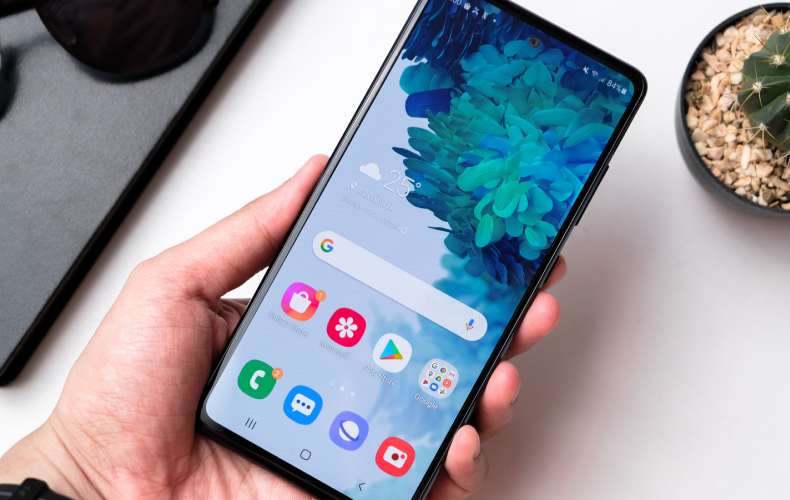
Let’s begin with the most crucial part of organizing your phone: clearing off the clutter from your home screens. We are accustomed to having items on our home screen, but do we really need all of these outdated widgets and app shortcuts taking up space on our home screens?
Go through every page of your home screens. Look at each app, shortcut, and widget:
The app shortcuts on your home screen can be rearranged and preferred based on how often you use them. A few apps should disappear from your home screen if you haven’t used them recently.
In the past month, have you dealt with any widgets? If not, take it off your home screen by long-pressing it. Yes, the Google Search bar is part of that. How often do you really use the search bar widget these days of Google Assistant and “OK Google”?
In comparison to the rest of your home screen, does a widget appear awkward or unattractive? By clearing out your home screen, you create space for any new apps that may require it and let your priceless wallpaper take center stage.
General Tips
- Before shutting down the browser, close every tab. Because it will operate in the background and waste CPU resources if any of the tabs are open.
- You should turn off all account synchronization if your connection is slow and your RAM is low. Choose manual synchronization.
- Avoid installing pointless apps.
- Instead of installing antivirus software on Android, configure each application’s permissions-access (Ask Every time/Allow/Deny).
- Prefer to start the cleaning manually when the phone is idle (no other work to do) rather than using an automated cleaner (after intervals).
- Clean the memory using the application manager (automatically) or manually from the settings (if you know how) once you’ve closed the heavy application.
- Finally, and importantly, if your phone is slow, then set it to a pure black wallpaper & screensaver and also stop all the animations happening as they use large CPU time.
Remember, the steps and ways described in this blog should not be treated as absolute rules that every user and device must follow. Based on your usage preferences, suitable steps can be taken into consideration to boost your Android phone.