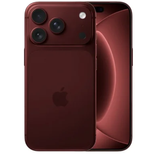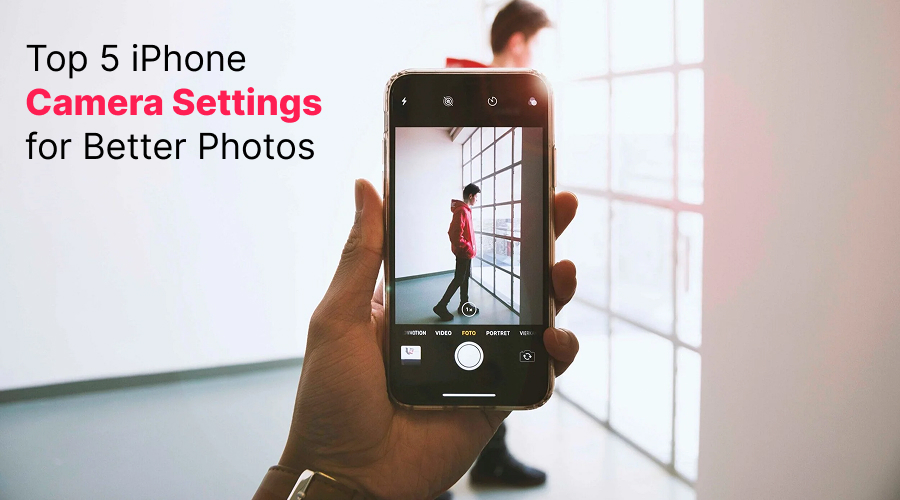
The Apple’s iPhones have gained immense traction for the past few decades. Among several logical reasons, most people buy Apple iPhone for its mesmerizing camera capabilities. No matter which models you buy, iPhone serves more than just a tool to communicate. It includes all the best camera features that makes even the ordinary scenes extraordinary. There is no doubt that iPhones have replaced traditional cameras for everyday photography.
Whether you like capturing candid shots or travel moments or are inclined towards food photography, iPhone is all you need for the best photographs. iPhones are known to create the best images – but the right settings do matter!
Yes, you read that right. Knowing the iPhone camera setting can help you get the best images of your life.
Wondering which all settings?
Keep reading this post, we have outlined the top 5 iPhone camera settings for better (in fact, the best) photos of your life every time. The settings discussed in this post will instantly elevate your photography and your confidence as well. The best thing about these settings is that they are easy to learn and implement.
So, without any further ado, let’s get started…
Table of Content
- Why iPhone Camera Settings Matter?
- 5 Best Apple iPhone Camera Settings for Capturing the Best Moments
- Bottom Lines
Why iPhone Camera Settings Matter?
Undoubtedly, Apple iPhones include numerous advanced camera features that automatically optimize your photography. However, knowing specific settings can take your photography to the next level and make you feel like a pro (even if you are just beginning with your passion). Settings that we are discussing here are very easy to incorporate in your everyday photography. They will dramatically improve clarity, color, focus and overall quality of the pictures.
Using these settings will help you click stunning, share-worthy photos every time. If you ever wonder why some people take breathtaking iPhone photos while yours look average, then the answer is simple – the trick lies in the right camera settings. If you also want to grab attention with your photos, then keep reading this post for the best camera settings.
5 Best Apple iPhone Camera Settings for Capturing the Best Moments
Here are the top 5 iPhone camera settings for you to capture the best photos. All the settings below are easy to learn, beginner-friendly and incredibly useful. Take a look…
1. Enable ProRAW or High Efficiency RAW for Maximum Detail
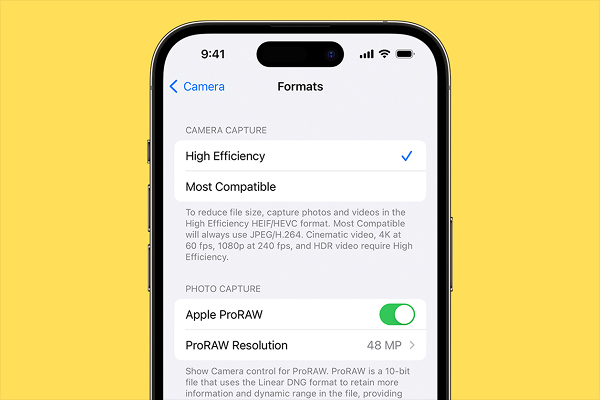
If you want the highest quality photos with your iPhone, then you should definitely enable ProRAW setting in your device. The Apple ProRAW setting is available on iPhone 12 Pro models and above. Enabling this feature allows you to capture more detailed and vibrant images. It helps preserve more details, dynamic range and color information compared to standard JPEG or HEIC files. This feature help you get comparatively better highlights, improved color accuracy, enhanced shadow recovery and higher detail retention.
Additionally, you get more editing flexibility when you enable ProRAW in your device.
When to Use ProRAW?
ProRAW is an excellent option for low-light scenes, portraits with lighting, scenic/landscape photography and wedding photography.
Here is How to Enable ProRAW
- Go to Settings
- Now, tap on Camera
- Click Formats
- Turn on Apple ProRAW
Now, consider choosing a 48 MP resolution 48MP for maximum detail and 12MP for smaller file sizes and faster processing.
Once enabled, you will get to see a RAW toggle in the Camera app. It will allow you to switch to RAW mode as and when you want.
NOTE: ProRAW files are comparatively larger in size (usually between 25–75 MB each); hence, you are advised to use this feature when you need maximum quality and details.
2. Turn On Grid Lines for Better Composition
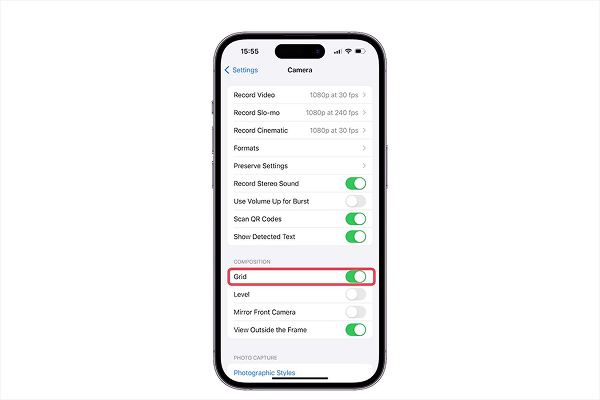
This one is pretty simple but very powerful feature that iPhone comes with. The right composition can be a total game-changer for your everyday photography. Enabling the grid is one of the best and easiest way to improve your photography instantly. Turning on the grid makes your shots feel more balanced and professional.
The grid adds a 3×3 pattern on your screen that helps you frame your photos in a more balanced and pleasing way. Enabling grid helps you keep horizons straight. Aside from that, it improves subject placement, reduces tilted or unbalanced shots, help maintain symmetry and make your shots look cleaner and more appealing.
When to Use Grid Lines?
Use Grid Lines when capturing landscapes, when you want a perfect symmetry or when you want to improve composition by aligning subjects with the grid’s lines.
Here is How to Enable Grid Lines
- Go to Settings
- Tap Camera
- Toggle on Grid, and you’re done!
Pro Tip: Line up the horizon or place your subject at a grid intersection to create a more balanced and eye-catching shot. While for portraits, align the eyes with the top third and for capturing buildings, use the vertical lines for symmetry
3. Adjust Exposure Manually for Perfect Brightness
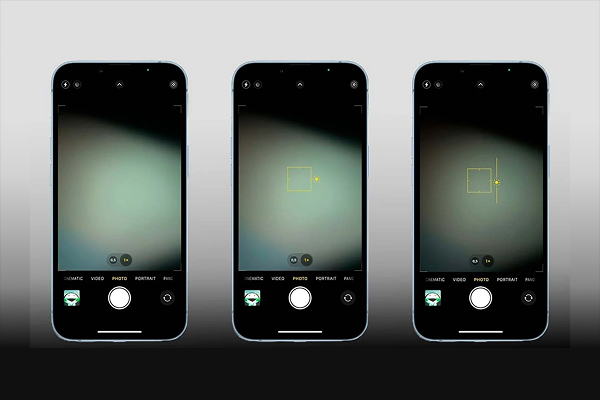
Do you wonder why sometimes some of your photos are too bright or too dark? It all lies in the adjustment of the camera exposure. More often than not, the iPhone camera uses automatic exposure. It sometimes works well, but other times it makes the photo look more unnatural, especially when you shoot in bright sunlight, harsh contrast or with strong backlight.
The camera in such a situation may overexpose or underexpose parts of the image, leading to poorly exposed photo. In such a situation, you are advised to manually adjust the exposure of your iPhone’s camera. Adjusting exposure prevents blown-out highlights, help you capture richer colors, preserve details in shadows and work great even in strong backlights.
When to Adjust Exposure Manually?
When you want to capture shots during sunsets, concerts and night time. Adjusting exposure manually will help you get more cinematic images.
Here is How to Adjust Exposure While Shooting
- Go to the Camera app
- Now, tap on the area you want to focus on
- You will see a yellow box there—now slide the sun icon up or down.
Pro Tip: Slide up to brighten and slide down to darken
For Constant Exposure
- Go to Settings
- Tap on Camera
- Go to Preserve Settings
- Now, enable Exposure Adjustment, Camera Mode and Live Photo
Enabling all these will help you have fixed exposure preferences every time you take an image.
Pro Tip: Avoid overexposing as it will allow you to get richer and more cinematic images.
4. Use Photographic Styles for the Best Look
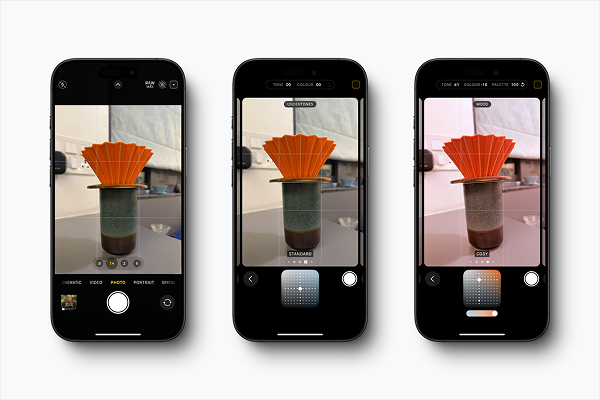
Photographic Styles (available in iPhone 13 and above models), allow you to create a consistent aesthetic across all your photos. More often than not, photographers need to apply filters post photography but that’s not the case with Photographic Styles. This newest feature in iPhone 13 and newer models modify the image processing pipeline itself, giving you deeper customization.
Some of the most popular Photographic Styles include:
- Standard – Natural, balanced look
- Rich Contrast – Deep blacks, strong contrast
- Vibrant – Richer, brighter colors
- Warm – Golden, cozy tones
- Cool – Crisp, blue-tinted tones
Each style can be further customized by adjusting tone and warmth for the best look.
When to Use Photographic Style?
You can use this feature when you wish to have absolutely stunning travel photographs, enhance skin tones in portraits and give your photos a more personalized and consistent aesthetics.
Here is How to Set Your Photographic Style
- Go to the Camera app
- Now Swipe up on the Viewfinder or Tap Arrow
- Now, tap Photographic Styles
- Now, you can choose and customize your preferred look
Once set, your iPhone will have this style preset each time you capture a photo.
NOTE: You will have to manually change it if you do not wish to use this feature at any time.
Pro Tip: Stick to one style if you want consistent aesthetics in all your images.
5. Activate HDR (High Dynamic Range) for More Detailed Scenes
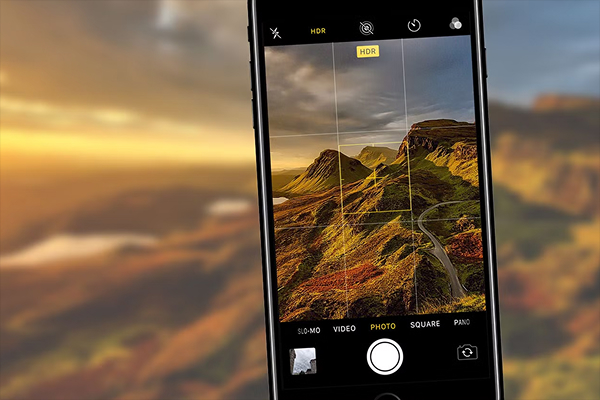
Last but not least setting that can make a significant change in your photography is activating HDR. HDR or High Dynamic Range allows Apple brands users to capture more detail in both the bright and dark parts of a scene. This iPhone camera setting results in photos with better contrast and a more balanced look.
It helps your photos appear more lifelike as it keeps both shadows and highlights clear, just like our eyes do.
When to Activate HDR?
You are advised to activate High Dynamic Range when capturing photos in high-contrast situations, such as landscapes with bright skies and dark shadows, or when shooting sunsets or taking portraits or group photos with strong backlighting.
Here is How to Activate High Dynamic Range in Your iPhone
- Go to the Settings
- Now, tap on Camera
- Click on HDR or Camera App
- Tap the HDR icon at the top to turn it on
Pro Tip: You can turn it on or off for each photo depending on your choice.
Putting it all together…
So, there you have it: the top 5 iPhone camera settings for the best photos of your life. All of the settings outlined above are very easy to use and beginner-friendly. Even if you are new to iPhone, these settings are easy to implement even on the go. With these easy settings you can turn your everyday photography into a pro level photoshoot.
All the 5 iPhone Camera Settings, such as enabling ProRAW, using Grid Lines, adjusting Exposure Control, using Photographic Styles and activating HDR give you complete control over composition, color, lighting and detailing. You don’t have to be pro to use these setting, just with a few taps you are good to go. So, what are you waiting for? Just begin showing your magic using these settings NOW! Happy Photographying…