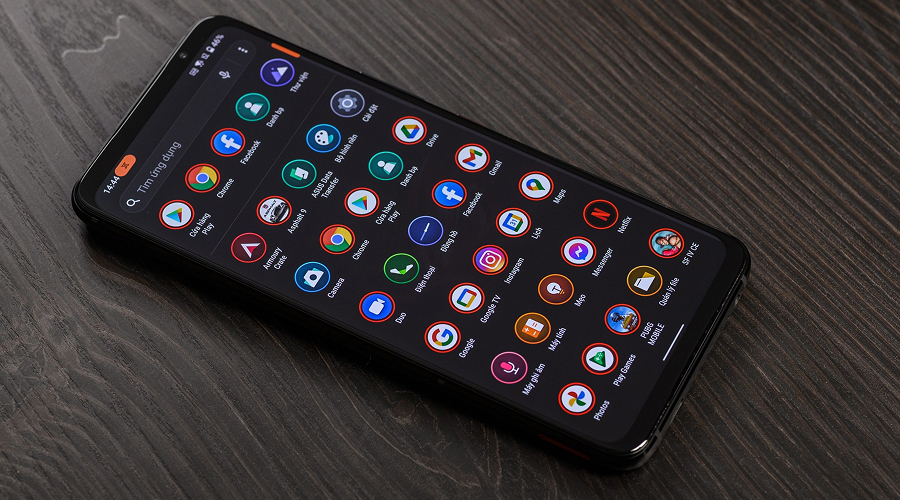
Approximately 90% of the world’s population uses smartphones. This means that around 7.2 billion people globally are using smartphones. The advantage of using a smartphone is that they can be used for multiple purposes, including making payments online, shopping online, and so on. There are applications for every task, and some applications, such as UPI payment gateways, online banking apps, etc., contain most sensitive information. Yes, all your personal information is stored within these applications, and safeguarding them is what you should do to protect your information from unauthorized access.
Hence, keeping them hidden is the only way to ensure safe usage. But the question here is – how to hide apps on Android phones? If you are also wondering the same, go through this post. In this step-by-step guide, we have explained several ways to keep your apps hidden on your Android device to help you keep your sensitive information safe at all times. So, without any further delay, let’s dive in…
Why Keep Your Apps Hidden on Your Android Device?
Well, there are several reasons to keep some of the most sensitive applications out of sight on your Android device. Some people do it for privacy reasons, while others for personal preference. Whether it’s for safeguarding sensitive information or keeping specific apps out of sight from curious onlookers or keeping your home screen clean, concealing apps on your Android devices can help you tremendously. Concealing these applications allows you to safeguard your information from unauthorised access.
Aside from that, hiding apps allow you to keep your home screen clean and less cluttered home screen. This allows you to easily access the applications that you use most often. Furthermore, hiding apps can be beneficial for parents, too. Concealing apps enable parents to restrict access to age-appropriate content, fostering a safer and more suitable digital environment for their children. All in all, keeping certain apps offers more advantages; hence, it is crucial that you learn to hide apps on your Android device.
Let’s now move to the steps you should take to hide apps on Android phones. Here we go…
Hiding Apps On Android Phone – A Step-By-Step Guide
Here are some of the best and most effective ways to hide applications on your Android devices. You can select any of these methods depending on the model you use and your comfort. Take a look…
1. Take Advantage of Built-in Options
Most Android phones come with built-in options to conceal applications. Knowing concealing apps using these options becomes much easier for users as these options eliminate the need for obtaining third-party tools to hide apps. Here is how you can hide apps on Android devices using built-in features:
- Go to the Settings app on your Android device.
- Now, find “Hide apps” or navigate manually through the settings.
- Now, select the apps you want to hide
The moment you click on the app you want to hide, it will no longer be visible on your home screen.
NOTE: Different models have different settings. Hence, it is crucial to know how it works on your device.
Here, we have outlined steps for hiding applications in some most popular Android phone brands. Take a look
a). On Popular Devices
Here is how you can hide apps on the most popular phone brands; take a look…
For OnePlus Phone Users
- Swipe up on the home screen to open the app drawer.
- Now, find the ‘Hidden Space’ folder.
- Now, tap the plus (+) icon in the upper-right corner.
- Now, tap on the application(s) you want to hide.
- Now, confirm by tapping on the checkmark.
b). For Samsung Phone Users
- Open the app drawer.
- Now, click on the three-dot menu in the upper-right corner.
- Select ‘Home screen settings.’
- Tap on ‘Hide apps.’
- Now, tap on the application(s) you want to hide.
- Now, click ‘Apply’ to save your changes.
c). For Pixel Phone Users
- Go to the app drawer on your device.
- Now, select the application you wish to hide.
- From the pop-up menu, tap on the info icon.
- Hit the Disable application option.
d). For LG Phone Users
- Go to Settings on your LG device.
- Now, tap on the ‘Display tab.’
- Now, select ‘Home screen.’
- Find the option ‘Hide apps.’
- Now, select the app you want to hide and then confirm by clicking.
e). For Xiaomi Phone Users
- Navigate the Settings app.
- Now, select ‘Apps.’
- Tap on ‘App lock.’
- Set up the App lock feature (if you have not done it yet).
- Then, tap on the ‘Hidden apps’ tab.
- Now, to hide an app, toggle the switch next to it.
f). For Motorola Phone Users
- Go to the home screen on your Motorola device.
- Now, tap and hold the application you wish to hide
- To hide the application from the home screen, simply drag the app to the Remove section located at the top of the interface.
g). For HONOR Phone users
- Go to Settings on your HONOR device.
- Now, tap on Security & Privacy.
- Now, find PrivateSpace.
- Once you find it, enable PrivateSpace
- Now, set a separate password and fingerprint for PrivateSpace, and you are done!
PrivateSpace allows you to download the apps that you wish to hide directly from the Play Store. After enabling PrivateSpace on your HONOR device, you won’t see hidden apps on your Home Screen or MainSpace.
2. Hide Using Third-Party Launchers
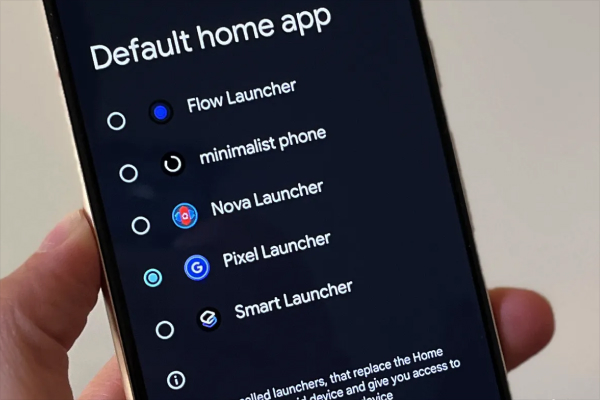
Some devices, including many popular mobile phone models, lack built-in features to hide apps directly. In such a situation, third-party launchers come in handy. There are numerous third-party app launchers available out there, including Nova, Apex, App Hider or Microsoft Launcher.
These third-party app hiders allow you to hide your applications from the home screen. You can choose to have any third-party tool as all come with unique features. Such as, Nova Launcher comes with customizable features to allow users to manage and organize their apps efficiently. While App Hider allow you to hide your applications behind disguised icons and assist you manage multiple accounts on your device.
The coolest thing about these tools is that they are easy to install and use. All you have to do is to download this app from the Play Store and start hiding apps.
NOTE: It is worth noting that not all third-party launchers are safe. Some of them may even request permissions that can potentially invade your privacy to gain access to your personal data, such as contacts, messages, location, and more. Hence, it is crucial that you download Android launchers only from trusted sources. Make sure to check ratings and reviews prior to installing any launcher from the Play Store.
3. Make Use of Secure Folders
Secure Folders is yet another easy and effortless way to hide your applications on Android devices. A secure folder is a built-in security feature in many modern smartphone devices. It allows you to store your sensitive data, including applications, files, etc., in an encrypted space. All of your data in a secure folder is protected by a password or a fingerprint.
This option is perfect for individuals looking to maintain the privacy of their application and keep it away from the view of others. When you choose to hide your applications in Secure Folders all your apps remain invisible on the main space or home screen. You can access them only by using your password or fingerprint.
It’s a two-step process and very easy to implement. Here are the steps you can take to hide your apps in Secure Folders; take a look…
STEP 1: Create a New Secure Folder
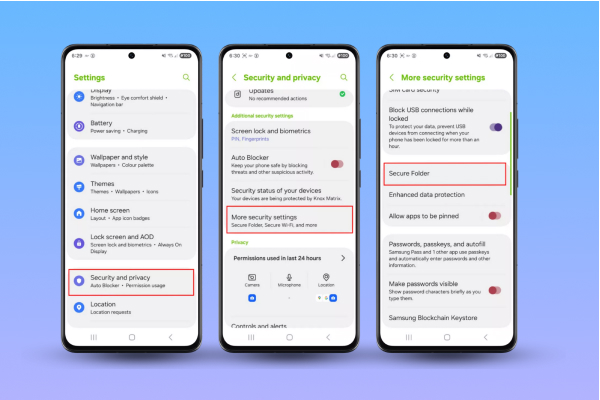
- Open the Files by Google app on your Android device
- Now, find “Collections.”
- Now, tap the Safe folder.
- Now, click either on PIN or Pattern.
- Now, enter your PIN or Pattern (Whatever you have selected)
- Re-enter your PIN in the “Confirm PIN” screen and tap Next.
STEP 2: Add Apps to a Secure Folder
- Open the Secure Folder and unlock it.
- Now, tap the plus (+) icon
- Now, select the app(s) you want to add from the list and press the “Add” button to move them into your Secure Folder.
- Tap Done once selected
NOTE: You can select as many apps as you want in one go to hide your apps using Secure Folder on your Android device.
4. Use Guest Mode or Private Settings for Hiding Apps
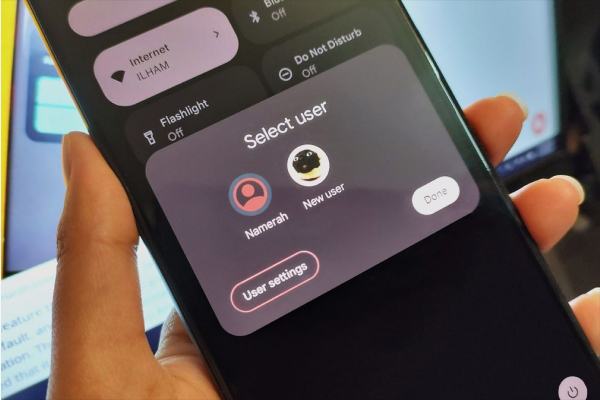
Many Android devices offer a Guest Mode feature to allow users to keep their secret files and applications hidden or safe. You can create separate user profiles on the same device using the Guest Mode option. Guest Mode is a full user profile for temporary guests, allowing them to have limited access to your main profile.
With guest mode enabled you don’t have to worry about your apps as the other user will be allowed to use your phone in the guest profile only where they will have limited access to your main profile. This method can also be useful if you want to hide photos and videos along with apps, keeping your personal media out of sight when someone else uses your device.
Steps to Enable Guest Mode
- Swipe down from the top of your screen and open the notification panel.
- Tap the user icon (your user profile).
- Now, tap on ‘Add guest.’
- Now, create a new guest account.
- You can choose to start fresh or continue with the previous guest session (if you already have one).
5. Rename Apps
Here is another easy method to hide apps on Android devices. All you have to do is to change the name of the application and protect it from prying eyes. Here are the steps to follow…
- Go to the App Drawer and locate the app you want to hide.
- Tap and long-press the app’s icon until a menu appears.
- Now, either select the ‘Edit’ or ‘Rename’ option from the menu.
- Write the new name of the app in the provided text field.
- Tap ‘OK’ to confirm the name change.
NOTE: Renaming the app will not allow you to change the icon of the app. Hence, it is worth noting that it is very easy to identify the application by its icon. So, it is safe to say that it is not a foolproof method of hiding an application. If you want to keep things really private, you can consider any method other than this. If you wish to change the icon as well, you may have to install a third-party launcher or an app icon changer.
6. Disable Apps to Hide Them
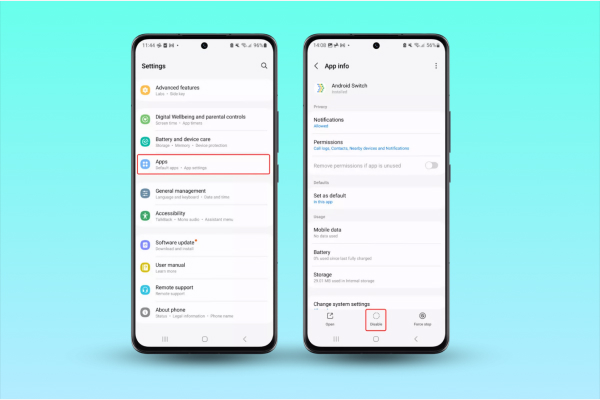
Last but not least is to disable applications to hide them. Yes, you can easily hide apps on your device by disabling them. However, know that this method works only for pre-installed apps. This method is ideal for all the apps that cannot be uninstalled from your system.
Disabling the app will prevent it from running in the background. Also, it won’t be visible on the main space. Here are the steps to disable an app from your Android phone; take a look…
Steps to Disable an App:
- Navigate Settings and go to Apps.
- Now, select the app that you wish to hide.
- Now, tap Disable.
NOTE: Using this option, you won’t be able to locate the app on your home screen or app drawer. Also, it won’t run in the background as well until you re-enable the same.
Alternatively, you can disable an app directly from the home screen. Here are the steps to follow:
a). Disable Apps on the Home Screen
- Select the app that you wish to disable.
- Long-press and hold the app until the menu appears.
- Now, tap on Disable.
- You can also disable the app by navigating to Settings. Here are the steps…
b). Disable Apps in the Settings
- Go to device settings.
- Now, go to the App section.
- Now, choose the application from the App section that you wish to disable
- Tap on Disable.
And you are done!
So, these are the steps you need to take in order to hide an application from Android phones.
You must be wondering what if you wish to unhide the application. Isn’t it?
No worries, just read ahead for the methods to find the hidden apps or unhide apps on Android devices. Here we go…
Steps to Find Hidden Apps on Android Phones
There are numerous methods to find the apps that you have hidden on your Android device. However, it is worth noting that you will have to select the same method to unhide the application that you have used to hide it. Here are a few methods that you can use to find hidden apps on your device. Take a look…
1. Switch Back to Your Main Account
If you are using Guest Mode to hide apps, then all you have to do is to switch back to your main account. Here are the steps:
- Swipe down the notification panel
- Now, tap the user icon
- Now, switch to your personal profile; that’s all!
2. Android Launcher
If you have used an app launched to hide your applications, then use the same launcher to unhide or find it. Here are the steps to follow…
- Go to the app’s settings.
- Now, locate the hidden apps.
- Now, deselect the apps you wish to unhide from the hidden apps section. And you are done!
3. Use PrivateSpace
If you have hidden your applications using PrivateSpace, then follow these steps to unhide your application…
- Go to Settings
- Now, select Security & Privacy
- Now, choose PrivateSpace and enter the PIN, Password, or Pattern (whatever you used in the first place) to get access to PrivateSpace
- Upon entering the PIN or Password, you will get to see all your hidden apps in this secure mode. You can unhide them from there.
The Bottom Line
So, there are several ways you can hide applications on Android phones. Knowing how to hide applications can help you tremendously to safeguard your private information. By hiding your most sensitive applications, you will prevent others from having access to your personal information of any kind.
Aside from allowing you to protect sensitive information, hiding apps also help reduce clutter and have your home screen cleaner and more organized. You can choose to use any of the methods outlined above to hide your applications on Android devices. All you have to ensure is that you are using the best method that will serve the purpose well.
Besides these methods, it is crucial to ensure your online safety by setting a strong password and utilizing other methods, such as using secure search engines, disabling app tracking and so on. Following these steps will allow you to ensure safe usage of your device at all times!
It’s now time for some FAQs pertaining to the process of hiding apps on Android phones. Take a look…
FAQs
1. Does hiding an app uninstall it?
No. Hiding an app will not uninstall it; it will only remove its icon from your home screen or app drawer. The app will remain there on your Android device, functioning in the background.
2. Does Hiding an App Delete Its Data?
No, hiding an application does not delete its data; it just removes the icon from the home screen or app drawer. You can access the app’s data and settings upon unhiding it.
3. Can I hide apps without installing third-party apps?
Yes, you can. In fact, there are several methods to hide an app on an Android phone. The easiest is to use the built-in options. If your phone supports built-in features to hide apps, you can use that or you can otherwise disable the app.
4. Can I hide apps using built-in features on all Android versions?
Yes, you can, provided your phone comes with built-in options to hide apps. This is because not all Android versions or devices have this feature by default. This feature is popular among newer Android devices. However, if you are using older versions or stock Android, you may need to install a third-party launcher or app-hider tool to hide applications.
5. Can I access hidden apps without unhiding them?
Yes, you can still access hidden apps. However, it very much depends on the method you have used to hide the app. Whether you have hidden the app using built-in features or third-party tools or any other method. You will have to utilize the same method to access the hidden app.
6. Will hiding an app prevent notifications from appearing?
No, not at all! Unless you disable notifications for that app in settings, you may still receive notifications. Concealing an app does not inherently prevent notifications from appearing. The application will continue to operate in the background and deliver notifications unless you explicitly turn them off in the app’s settings.
7. Can we hide apps on different Android versions?
Yes, you can hide apps on different Android versions. Different Android devices come with different options for hiding applications. Some Android versions come with built-in options, while others come with PrivateSpace. You can use the appropriate method to hide the app on your system.
8. How do I hide apps using my phone’s built-in settings?
Go to your home screen settings or app drawer options on your device to hide the apps. Then, look for “Hide Apps” or “App Lock/Privacy.” Then, select the apps you want to hide and save changes. Know that the steps vary greatly by brand (Samsung, Xiaomi, OnePlus, Oppo, etc.).