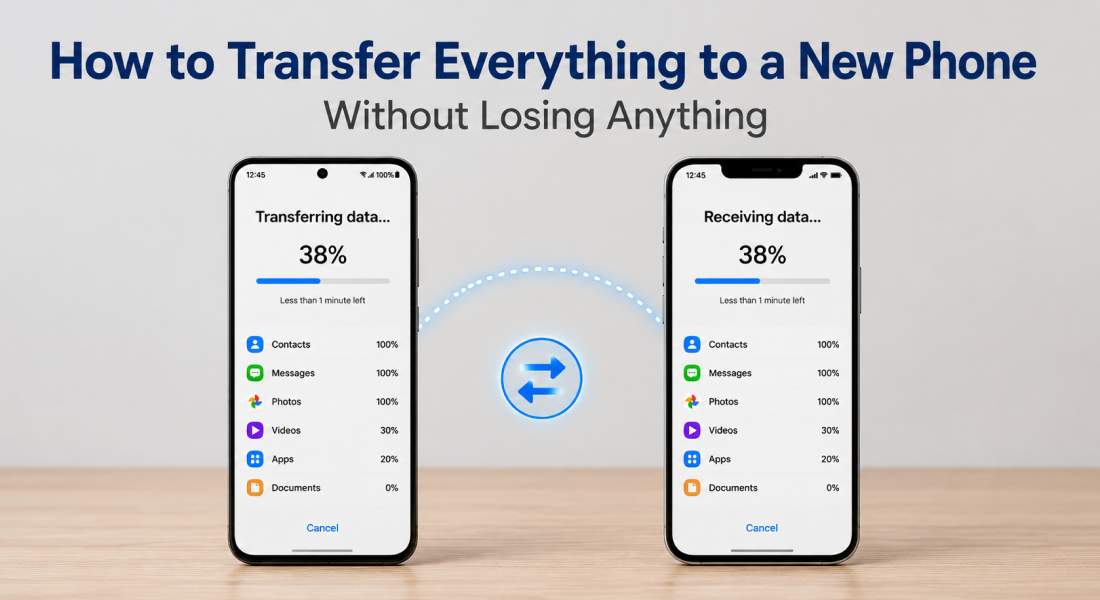
Setting up a new phone should feel exciting, not stressful. Yet many people dread the switch because they worry about losing photos, contacts or years of chat history. This guide walks through exactly how to move everything safely, whatever device you are using.
What People Most Commonly Lose During a Phone Transfer
Have you ever signed onto a brand-new phone, and immediately felt a sense of dread knowing there’s something missing? You’re not the only one. Phone transfers often go wrong, and it’s almost always the same few things getting left behind.
Photos and videos are the most often forgotten pieces. Many people assume that their gallery backs up automatically and fullscreen images months old are sitting on a device they have already traded in or passed down through the family. This simply talks about local storage habits, as it’s not feasible for photos laid down directly to a phone rather than a cloud storage system to hop into a new device.
After videos and photos, the next one that gets left behind is text messages. This one is a little more complicated, as it’s not just about backing up your phone, but also your text message apps. In many cases, message history is located inside individual applications rather than a central memory space. WhatsApp, for instance, deals with its own chat storage separate from your phone’s standard SMS, meaning not only backup your phone, but also your chats.
Finally, there’s app data. Frequently, if you reinstall an app, you restore the app as well. However, some apps forget that you also want other data, such as notifications, logs for achievements and other items, as well as your login history. This is especially true for games, many of which still save progress to local systems rather than to the cloud.
A Quick Look at What Usually Goes Missing
| Item | Why It Often Gets Lost |
| Photos and videos | Stored locally instead of in a cloud account |
| Text messages | Kept inside separate apps rather than one backup |
| App login sessions | Not always tied to your account in the cloud |
| Call history | Rarely included in standard backup tools |
| Health and fitness data | Often locked to a specific app ecosystem |
| Two factor authentication codes | Tied to the physical device itself |
The table below shows the items people lose most often, along with the reason it typically happens.
Seeing this pattern makes it much easier to plan ahead. Once you know which categories are at risk, you can address each one individually before starting the actual transfer.
Why Backups Alone Are Not Always Enough
Many people think the backup covers everything, but that is rarely the case in practice. According to Google’s own support documentation, a full backup only includes what each specific app has opted to include, and this is different for each developer.
Apple does a similar thing with iCloud in which automatically most system data is backed up, but it is up to the specific third party developer to decide whether that data is backed up and how it is synced. Two phones running exactly the same apps could have very different data transfer results.
Building Good Habits Before You Even Buy a New Phone
Instead of panicking on your switching day, take a little time to make these habits part of using your phone normally:
- Turn on automatic photo backup in Google Photos or iCloud
- Make sure that your messaging apps have backup turned on
- Make a note of which apps have important progress stored locally and not online
- Make sure your phone is updated because low software versions sometimes block transfer programs
- Keep a list of accounts that have 2-factor authentication tied to your device
The little things really pay off on the transfer day, because most of the job is already being done in the background when you are not even looking at your phone at all.
How to Transfer Data on Android
Switching to a new Android phone is easier now than it has ever been, thanks to Google’s built in tools. Android has quietly become excellent at moving your digital life without much manual effort.
The main tool here is Google’s own data transfer feature, built directly into the setup process on nearly every modern Android phone. When you first switch on a new device, it prompts you to sign in with your Google account and immediately offers to copy data across.
Using Google’s Built In Transfer Tool
Most Android manufacturers, including Samsung, Xiaomi and OnePlus, rely on Google’s core transfer system alongside their own additional tools. Here is the general process most people will follow:
- Sign in with your Google account on the new phone during setup
- Choose to copy apps, contacts and settings when prompted
- Connect both phones using a cable or a wireless connection if offered
- Wait for the transfer to complete before removing the old device
- Confirm your photos appear correctly inside Google Photos afterwards
According to Google’s official Android support pages, this process copies contacts, calendar entries, Wi-Fi passwords, app data and photos automatically, provided your old phone stays connected throughout.
Manufacturer Specific Transfer Apps
Many brands also offer their own dedicated apps for a smoother experience. Samsung Smart Switch remains one of the most polished examples, allowing users to move data from an old Samsung phone, another Android brand or even an iPhone.
These tools often go further than Google’s standard process by including call logs, home screen layouts and certain system settings that would otherwise need manual reconfiguration. If your new phone comes from a major manufacturer, checking for their dedicated transfer app is always worth the extra few minutes.
Handling Messaging Apps Separately
Google’s transfer tool covers a great deal, but messaging apps often need their own backup step first. WhatsApp, for instance, requires you to back up chats to Google Drive before switching devices, then restore that backup once the new phone is set up and logged into WhatsApp again.
Telegram and Signal work differently again, since both store chat history on their own servers rather than relying on local device backups in the same way. Checking each app’s own settings menu before switching avoids any nasty surprises once you are already using the new phone.
How to Transfer Data on iPhone
Apple has created arguably the best transfer experience around, because its whole ecosystem revolves around one ID, Apple ID. Switching to a new iPhone is rarely more than a handful of taps.
Quick Start Makes This Almost Effortless
The simplest way is by using Apple’s own Quick Start feature, which automatically opens when you power on a new iPhone next to your old one. As Apple writes on its official support pages, you need to keep the two devices close together and then scan a small animation on your old iPhone’s camera to trigger the transfer.
The Quick Start feature will then copy all of your settings, apps, photos, messages and even your Apple Pay cards from the old phone to your new one. It usually takes less than an hour, depending on how much data you have.
Restoring From an iCloud or Computer Backup
If Quick Start isn’t feasible, you can achieve the same result by restoring from an iCloud backup. When you go through the setup screens on your new iPhone, simply choose to restore from your most recent iCloud backup.
You can also restore from a backup on your computer by connecting your iPhone to a macOS or Windows PC through USB, and opening Finder or iTunes. When you connect to a computer, it will use a local backup restore rather than an internet transfer, which is preferred by some people who don’t want to rely on internet speed. Either way, you’ll end up with practically everything, including where apps were located on your home screen, notes and reminders you had saved, as well as passwords stored in the Keychain.
A Few Things Worth Checking Afterwards
Even with Apple’s smooth process, a short checklist afterwards avoids awkward surprises:
- Confirm iMessage and FaceTime are active on the new device
- Check that health data has synced correctly inside the Health app
- Re-enable two factor authentication prompts if requested
- Sign back into any apps that use separate login systems outside Apple ID
Taking five minutes to run through this list means nothing important slips through unnoticed.
Switching Between Android and iPhone: Extra Steps
Moving between operating systems introduces a few extra steps that same platform transfers simply do not require. Apple and Google both offer dedicated tools specifically built for this scenario.
From Android to iPhone
Apple’s Move to iOS app is still the best option for this site. Downloaded onto your old Android phone, it can move your contacts, message history, photos, calendar items and even free apps (provided an iOS equivalent is available).
Apple says that the devices should remain on the same Wi-Fi network during this process, and you should start this process only if your Android phone has a fair amount of charge left. These recommendations help ensure a smoother data transfer when setting up new iOS devices.
From iPhone to Android
Google’s Switch to Android app handles the reverse journey. It scans a QR code displayed on the Android phone using your iPhone’s camera, then begins transferring contacts, photos, calendar entries and messages.
As iMessage is an Apple-only feature that Android phones don’t have, any messages that were sent and received via iMessage will not be transferred. However, if you wish, Apple offers a third-party deregistration at its support site to prevent iMessage from continuing to receive messages for your old iPhone number on your new Android phone.
What Will Not Transfer Automatically (And How to Handle It)
No transfer tool, however advanced, covers absolutely everything without a little manual attention. Knowing these gaps beforehand prevents unnecessary panic once the process finishes.
Two Factor Authentication Apps
Authenticator apps such as Google Authenticator or Authy often tie codes directly to a specific device. Moving to a new phone without exporting these first can lock you out of important accounts temporarily.
Most authenticator apps now include an export or transfer feature within their own settings menu, so checking this before switching phones saves considerable frustration afterwards.
Locally Stored Files and Downloads
Documents, downloaded PDFs and offline music files saved directly to internal storage rarely move through standard transfer tools. Manually copying these through a cloud storage app or a direct cable connection remains the safest approach.
Certain Game Progress
Games without cloud saving enabled often lose progress entirely once uninstalled from the old device. Checking each game’s own settings menu for a cloud save option before switching phones is worth the extra minute it takes.
Smart Home and Wearable Pairings
Devices such as smartwatches, fitness trackers and smart home hubs sometimes need manual re-pairing after a phone switch, since Bluetooth connections are tied to the specific device rather than your account.
The Bottom Line
Switching phones does not need to feel like gambling with years of memories and data. Most modern transfer tools, whether from Apple, Google or individual manufacturers, handle the bulk of the work reliably.
The real key lies in understanding which categories need a little extra manual attention beforehand, from authenticator apps to locally saved files. Spend a few minutes preparing properly, and your new phone will feel completely yours within hours, not days.