Apple’s iOS updates are meant to bring new features, security improvements and performance enhancements. But that’s not how it is with the latest iOS update that is 26.3. To be more specific the latest update is a major one, released specifically for iPhone 11 and later models. This particularly focuses on privacy.
However, after updating it, many users had to struggle with delayed animations, slower app launches, overheating, sluggishness, unresponsiveness and even battery drain. If you are one of those users, then fret not! This post is for you. Here, we have outlined several possible reasons why your iPhone feel slower after installing iOS 26.3 along with some practical solutions to restore smooth performance. So, without any further ado, let’s get started….
Before we delve into fixes, let’s first understand the possible reasons that are making the device feel slow and unresponsive. Here we go…
Possible Causes Your iPhone Feels Slow After Updating to iOS 26.3
It is crucial to understand that whenever you install the latest update, your iPhone performs several background tasks. Some of the tasks include, updating app databases, optimizing system storage, re-indexing files and photos, rebuilding caches and search results and so on.
All these processes in the background consume immense processing powers, making your device feel unresponsive and sluggish. But worry not, most the time these are temporary and resolves automatically within 3-4 days once the system finishes optimizing.
Other causes that impact your iPhone’s performance include, outdated apps in your iPhone, insufficient storage, aging battery and heavy visual effects. If that’s the case, you may have to take some measures to fix the issue.
When Should You Act
If the problem is because of the background processing, then you will know this after 3-4 days of updating to iOS 26.3. However, if you notice:
- Persistent freezing after several days
- Overheating or battery draining unusually faster than earlier
- Extreme sluggishness or unresponsiveness even after a few days of updating the software
- Apps crashing constantly
It’s time to act!
Top 10+ Fixes to Get Rid of Lagging Issue After Updating to iOS 26.3
Here are some of the fixes that you may implement to get rid of the issues you are facing after updating to iOS 26.3. Take a look…
1. Be Patient and Wait for Background Optimization to Finish
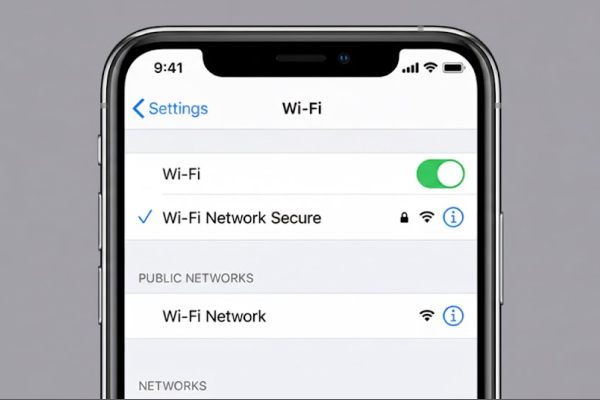
If you updated your iPhone device recently, then it is crucial to be patient for a while. As we said, it may be temporary. If there is no problem with your phone’s battery and all your apps are also updated, then wait for a while. After major updates, iOS performs indexing and optimization tasks that run in the background. These processes temporarily affect performance.
You should:
- Keep your iPhone connected to Wi-Fi and allow at least 24–72 hours for background tasks to complete
You may soon notice smoother performance once indexing finishes, so be patient until then.
2. Restart Your iPhone
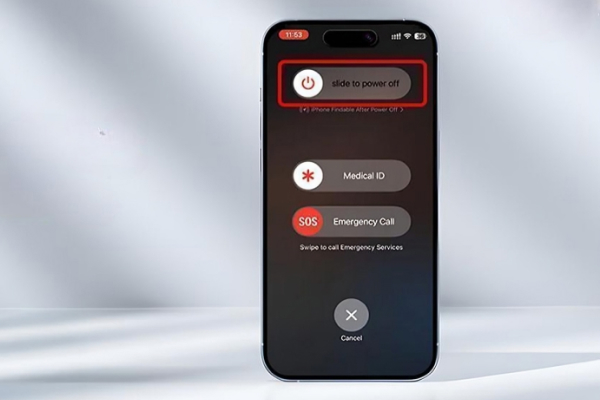
Simply restarting your device can instantly clear temporary bugs or memory glitches that usually appear after installing a new update.
Here is how you can do it:
- Press and hold the side button (a volume button on newer models) until the Apple logo appears
Restarting your mobile device will refresh system processes and eliminate small performance issues immediately.
3. Free Up Storage Space
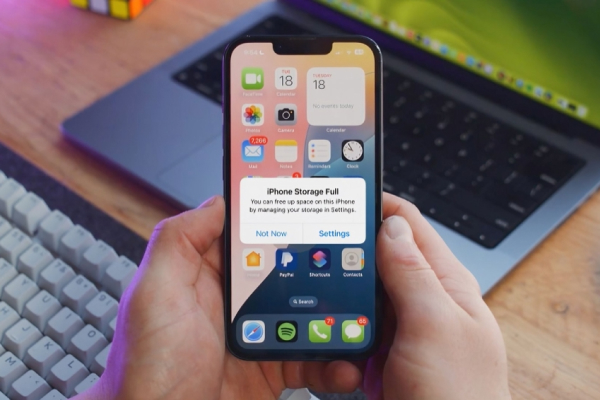
If your phone’s storage is already full, then also your iPhone may feel sluggish and unresponsive. You are suggested to check your storage status.
Here is how you can do it:
- Go to Settings > General > iPhone Storage
- Delete unnecessary apps & files, videos and duplicate photos to free up space and improve performance
Freeing up storage space will make your your device feel light and highly responsive.
4. Update All Apps
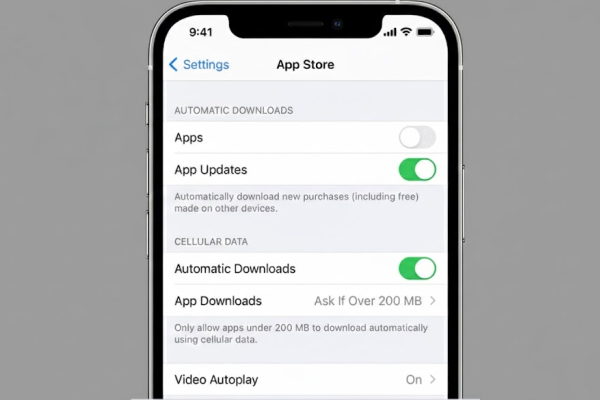
Keeping all your apps updated is crucial for better compatibility, performance, and maintaining iOS security after installing a new system update. Like for iPhones, you also get frequent updates for phone apps to improve performance, fix bugs, and ensure compatibility with new software versions. After an iOS update, older app versions may not be fully compatible with the new system, which is why you may be facing the issues.
Therefore, you are advised to update all your apps and avoid freezing, slow performance or crashes.
Here is how you can update apps:
- Open App Store
- Now, tap your profile icon
- Now, select “Update All”
You will notice improved performance immediately after updating all apps.
5. Disable Low Power Mode
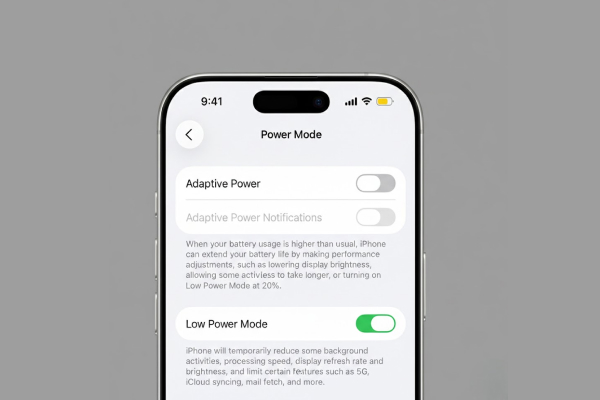
Low Power Mode is a popular iPhone feature, which is meant to help users save battery. It significantly reduces power usage by lowering brightness, limiting background activity, pausing some updates and reducing animations.
However, if enabled, it reportedly impacts the performance after updating to the latest iOS version. Hence, you are advised to disable it for improving iPhone’s performance.
Here is how you can disable Low Power Mode:
- Go to Settings > Battery
- Now, turn off Low Power Mode
Once disabled, iPhone usually return to normal performance levels. You can however enable it later as and when you want but at the moment it is wise to keep it disabled.
6. Reduce Background App Activity
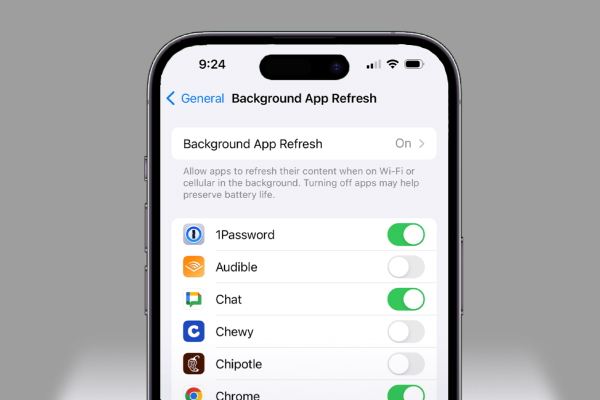
Too many apps running in the background also affect iPhone’s performance as they consume both memory and processing power. Hence, you should minimize background app activities with simple adjustments.
Here is how you can do it:
- Go to Settings > General > Background App Refresh
- Now, turn it off (entirely or limit it to essential apps only)
- Close unused apps from the app switcher
Reducing background activity will free system resources and improve your iPhone’s responsiveness.
7. Check Battery Health
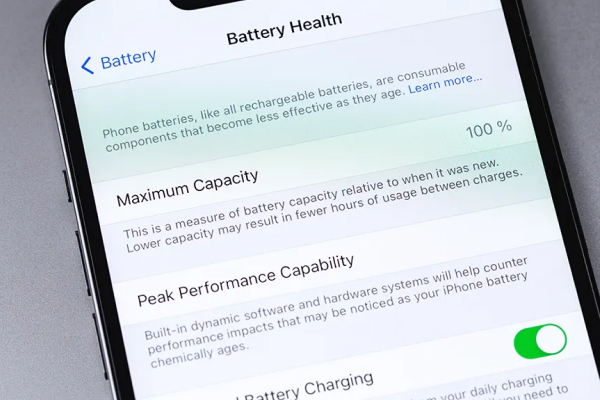
As we said, aging battery also impacts iPhone’s performance; hence, you are suggested to check your iPhone’s battery health and take appropriate measures.
Here is how to check iPhone’s battery health:
- Go to Settings > Battery > Battery Health
- Now, see if the maximum capacity is significantly reduced, if you notice so, then it’s time to replace the battery
Replacing the battery will make your device feel new again and improve overall performance, stability, and battery life.
8. Reduce Motion and Visual Effects
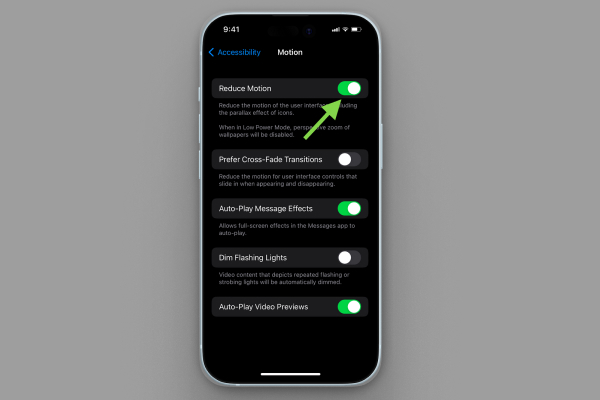
Most iOS versions come with heavier animations and visual effects. These effects in older version of iPhone may lead to stuttering or delayed transitions. Consider reducing motion and visual effects for the best performance.
Here is how you can do it:
- Go to Settings > Accessibility > Motion
- Now, enable Reduce Motion
Then,
- Again, go to Settings > Accessibility > Display & Text Size
- Now, enable Reduce Transparency
Implementing these will make your animations lighter and lead to improved performance.
9. Clear Safari Cache and Temporary Data
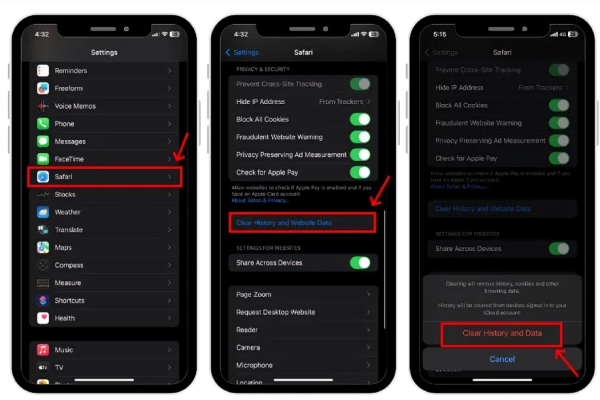
Another cause for sluggish iPhone after updating to iOS 26.3 is the accumulated browsing data. Clear it all.
Here is how to clear Safari cache:
- Go to Settings > Safari
- Now, click on Clear History and Website Data
Clearing cache will improve the performance of your iPhone significantly. Also, keep in mind that some apps may require you to clear cache directly from their own settings.
10. Reset All Settings
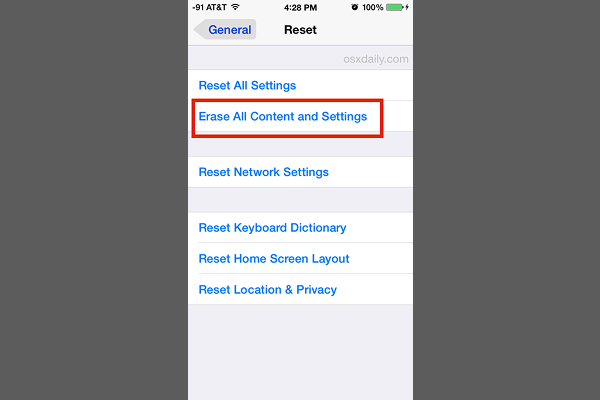
If you still face the issue, then consider resetting system settings (without data loss) to resolve glitches conflicts.
Here is how to reset all settings:
- Go to Settings > General > Transfer or Reset iPhone
- Now, click Reset > Reset All Settings
11. onsider Factory Resetting
If nothing has worked out for you, then consider a full factory reset. It will remove deeper software glitches and improve performance.
Here is how to do it:
- Firstly, backup your iPhone to iCloud or computer
- Now, Go to Settings > General > Reset
- Now, select Erase All Content and Settings
- Then, set up as new or restore from backup
Setting up as new is considered the best option as it removes leftover system conflicts and help device run smoothly.
The Bottom Line
So, these are the 10+ fixes to get rid of lagging issue after updating to iOS. All of these are easy to implement fixes that only take a few minutes of your routine. However, if none of the above outlined fix work for you or if the cause is hardware-related, then it’s wise to contact Apple Support or visit an authorized Apple service center.
Professional technicians may help you identify the real cause and eliminate it instantly. hardware-related causes. Hopefully, this article has been informative for you and helped you get rid of the iOS 26.3-related issue.