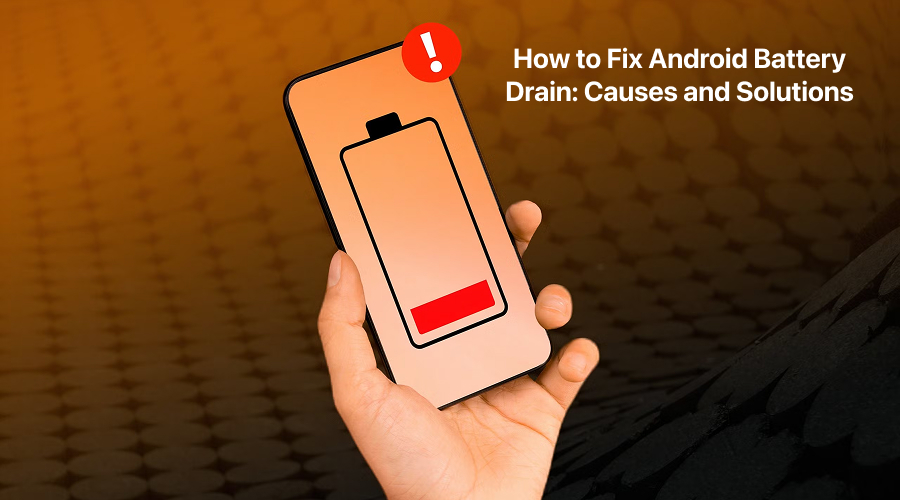
Modern Android devices come with advanced features. Of course, they also include intelligent power management systems for optimizing battery performance. But still users often face battery drain issues. This is in fact, one of the most common issues that smartphone users often complain of. Probably most users will resonate with that that battery dropping pretty fast is the most irritating thing, especially when gaming or creating videos.
Some users even complain of battery drain when they are not using their devices. Your phone battery can rapidly drain for several reasons, including background apps, system settings, outdated software and so on. If you are also sailing in the same boat, then read this post.
In this post, you will get to explore the most common causes of Android battery drain along with their solutions. So, without any further ado, let’s get started…
Let’s begin with the causes of battery drain so that you know what exactly is the reason for your phone’s battery drain. Here we go…
Common Causes of Android Battery Drain
Knowing why your phone’s battery drains rapidly is the first and foremost step to fix the issue mindfully. Battery drain is one of the most frustrating Common Smartphone Problems faced by Android users today. Here are the causes:
1. High Screen Brightness and Display Settings
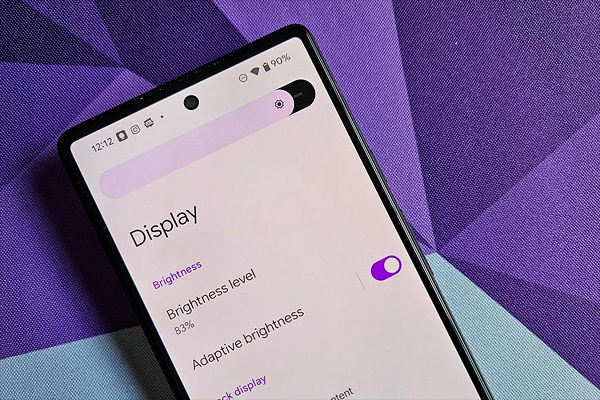
The first and foremost cause of battery drain is high screen brightness and display setting. High brightness, long screen timeout, 120Hz or higher refresh rates, always-on display enabled, all lead to rapid battery drain.
2. Apps Running in the Background Apps
Apps that run in the background also consume power, ultimately leading to rapid battery drain. Social media apps, messaging platforms, and fitness trackers continue running in the background. Some common signs include:
- Battery drops even when the phone is not in use
- Apps refreshing very frequently
- Phone heating up pretty rapidly even when not used much
3. Poor Connection
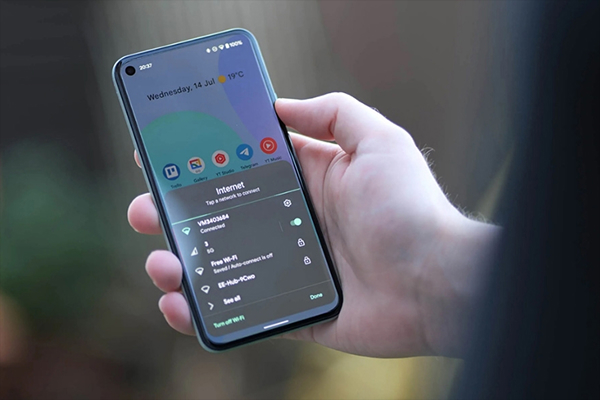
Weak mobile network or Wi-Fi connection can again lead to battery drain. This usually happens when you are traveling frequently, being in remote areas or are in basements. It also happens when you frequently switch between Wi-Fi and mobile data.
4. Power-Hungry Apps
People who use power-hungry apps, such as GPS, location tracking, food delivery apps, navigation apps, weather and social media apps often complain of quick battery drain. This is because these apps consume more power than other apps, leading to battery drain.
5. Using Outdated Software or Buggy Updates
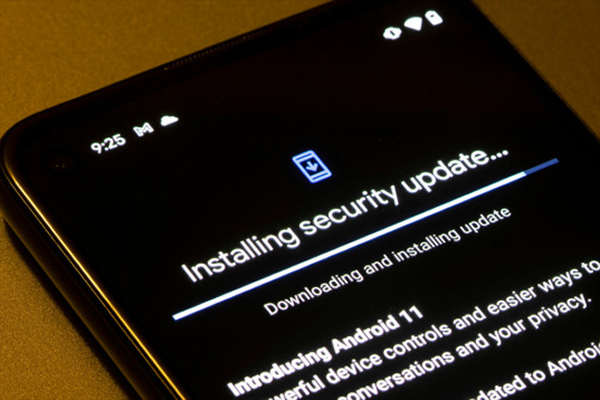
Using old or outdated Android versions is again a major reason for battery drain. Aside from that, using buggy software also leads to quick battery drop.
6. Push Notifications and Sync Services
Constant email syncing, cloud backups, and real-time notifications can quickly drain power, leading to rapid battery loss on Android devices.
7. Aging Battery
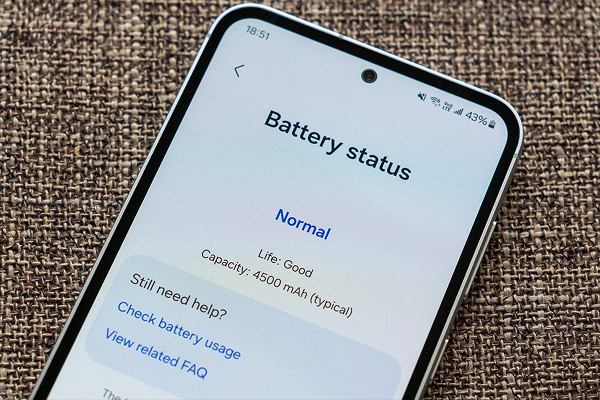
Older phones often show signs of battery drain as with time; lithium-ion batteries degrade. Phones older than two or three years often experience noticeable battery degradation.
Now that you know the possible causes for your phone’s battery drain; let’s now take a look at the solutions to effectively fix Android battery drop issues. Here we go…
Best Solutions to Fix Android Battery Drain
Here are some of the most effective solutions you can use to fix battery drain issues and improve its performance gradually. Take a look…
1. Check Battery Usage Stats
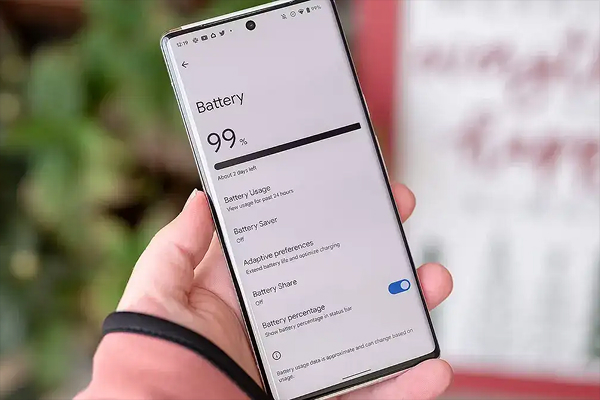
Knowing why your battery is draining is the first step to fix the issue. Hence, you are advised to first check battery usage stats. Here is how you can check it on your Android device:
Go to Settings > Battery > Battery Usage
Now, look for apps consuming excessive power and uninstall or restrict the ones that you don’t use anymore.
2. Restrict Background App Activity
Presumably you know that you can limit background usage of your apps on your Android devices. Take advantage of this feature and get rid of the issue. Here is what you need to do:
- Open Settings
- Go to Apps
- Select the app
- Now, tap Battery
- Now, Choose Restricted or Optimized
It will prevent the background apps from running when not in use.
3. Enable Battery Saver Mode
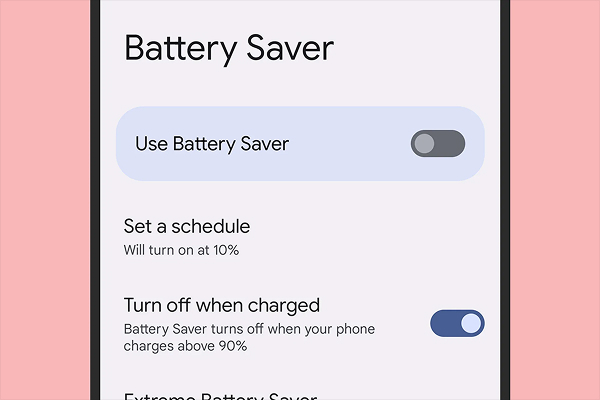
Enabling battery saver mode on your Android device can again help you improve battery performance. Battery saver reduces background activity, limits animations and adjusts system performance.
Enable battery saver, especially when
- Your battery drops below 20–30%
- When you are traveling
Alternatively, you can schedule Battery Saver to turn on automatically so that you never face interruption at all.
4. Optimize Display Settings
As you know that your display settings also affect your battery performance; hence you should enable Adaptive Brightness settings to improve battery performance.
Besides that,
- Reduce refresh rate from 120Hz to 60Hz
- Shorten screen timeout
- Use Dark Mode, especially on AMOLED displays
Following these steps can help you save power and have improved battery performance.
5. Turn Off Unnecessary Connectivity Features
Keeping Bluetooth, NFC, and hotspot enabled can cause noticeably faster battery drain. Hence, you should:
- Keep your Bluetooth and NFC turned off when not in use
- Disable Wi-Fi scanning
- Avoid keeping hotspot enabled
Aside from that, if you are in low-network areas, keep your phone on Airplane mode to save power.
6. Use Location Services Smartly
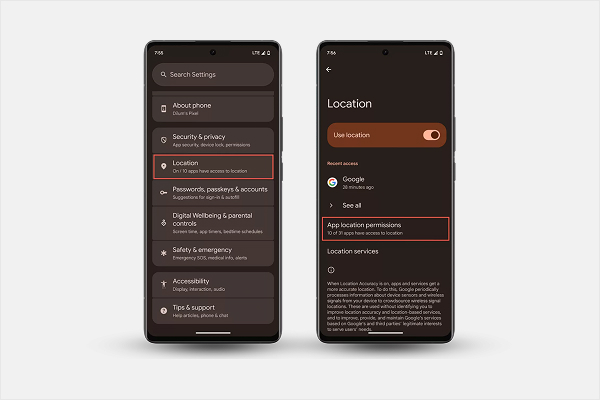
Optimize Location Tracking apps for improving battery performance. Here is how you can optimize:
- Go to Settings
- Now, go to Location
- Set apps to Allow only while using
- Turn off location access for apps that don’t need it
Besides that, consider disabling GPS when not required.
These steps can dramatically reduce battery drain and improve performance.
7. Turn Off Notifications and Auto Sync
Auto syncing drains the battery pretty rapidly in the background. Therefore, you are advised to:
- Keep all unnecessary notifications turned off (most of the time)
- Reduce email sync frequency
- Disable auto-sync for most apps (especially that you don’t use much)
This helps cut down battery consumption and boosts overall performance.
8. Keep Your Android Software Updated
Keeping your device’s software updated is crucial. Mobile manufacturers keep releasing regular updates for improving battery efficiency. Hence, keep your phone’s software updated. Here are the steps:
- Go to Settings and check for Software Update
- Install latest updates (if available; avoid beta versions when battery is weak)
10. Delete Cache
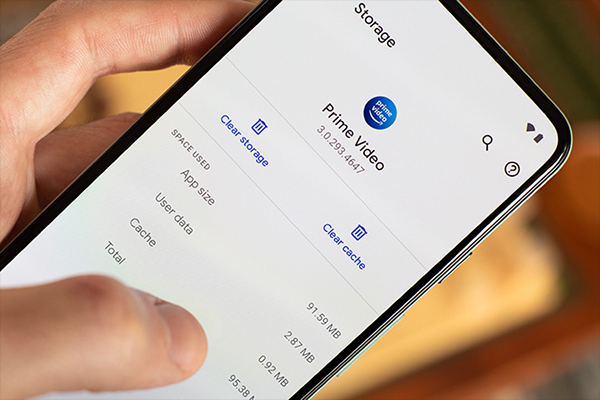
Caches are temporary files in your system, deleting them can help prevent battery drain. Here is how to clear cache:
Steps to Clear Cache for Individual Apps
- Go to Settings
- Now, go to Apps
- Select an app
- Tap Storage & cache
- Tap Clear cache
Start with power-hungry apps, including Instagram, YouTube, Chrome, Games and so on.
11. Remove Live Wallpapers and Widgets
Live wallpapers, animated themes and widgets consume battery continuously. Hence, it is wise to consider:
- Using static wallpapers
- Removing unnecessary home-screen widgets
- Opting for simple layouts
This will not only prevent battery drain, but will also improve battery life.
12. Get Your Phone’s Battery Replaced Professionally
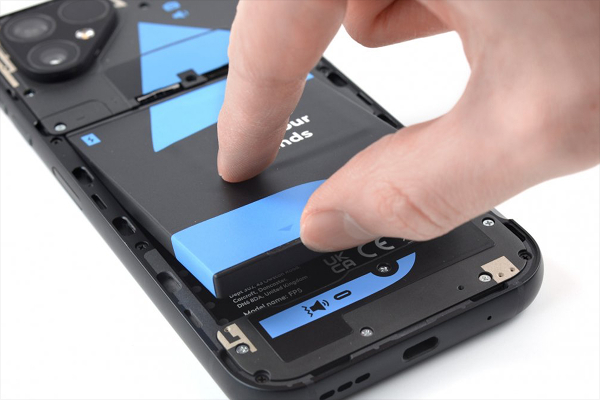
If none of the above-mentioned solutions work for you, then consider getting your phone’s battery replaced. It simply means that your phone’s battery is worn out and now it is required to be changed professionally.
If you constantly notice these:
- Sudden shutdowns
- Rapid battery drops from 30% to 0%
- Phone heating during charging
- Need repeated charges in a day
Your phone’s battery has worn out! Get it changed by a professional service provider.
Putting it all together…
So, these are the causes and solutions to get rid of battery drain. Hopefully, this article has been enlightening for you. Implementing these solutions will not only prevent frequent battery drains, but will also improve battery life. Aside from these solutions, it is crucial to follow some best practices, such as:
- Avoiding using your device in extreme temperatures
- Charging your device with original or certified chargers
- Not letting your phone’s battery drop to 0% frequently
- Not charging your device fully or to 100% pretty frequently
Following these best practices will allow your phone’s battery to work better and drain lesser. The best thing is all of the above-mentioned solutions and best practices are easy to implement. With just simple tweaks, like limiting background apps, adjusting display settings and connectivity features, you can significantly improve your phone’s battery life and enjoy a smoother, longer-lasting Android experience.