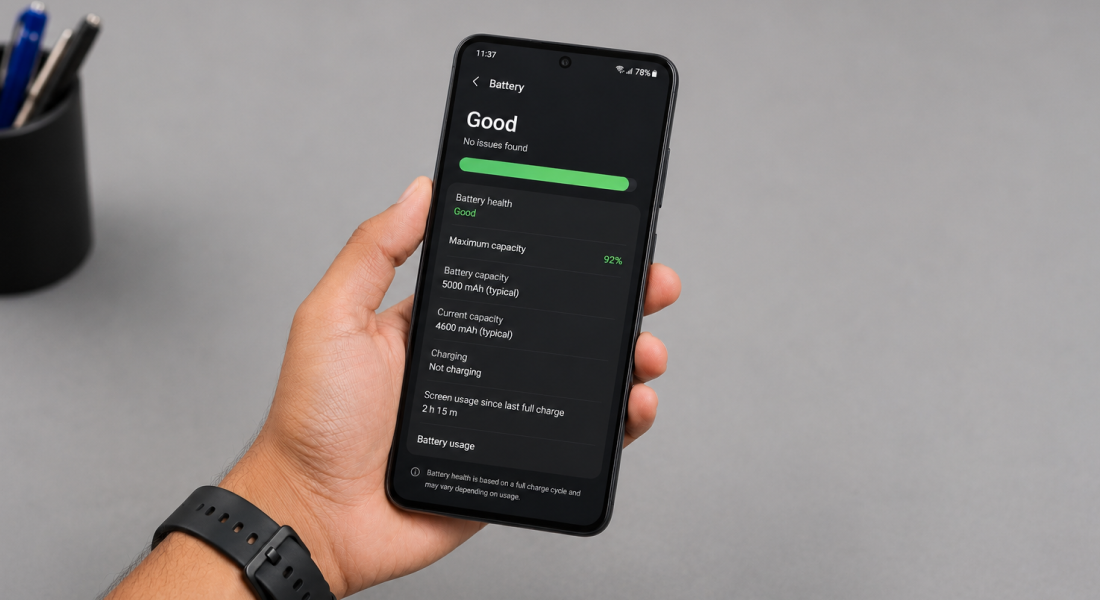
Your phone’s battery is one of the most important parts of your device. Even if all the other features are great, a weak battery can make them feel less useful. Moreover, with time every battery loses its capacity. On top of it, if your phone starts draining faster, shuts down unexpectedly, or takes longer to charge, then it adds to the issue even more. This makes it crucial for users to keep checking their phone’s battery health. And the good news is you can check your phone’s battery healthy on any Android (without Root). If you want to know how, keep reading this post. Here we have outlined some of the best steps to find useful battery information on your phone without Root. So, without any further delay, let’s get started…
Why is it Crucial to Check Battery Health?
Checking battery health is one of the easiest and fastest ways to have detailed information on your phone’s battery capacity. Battery health mainly shows how much of your phone’s battery capacity is left compared to when it was new. For example, if your phone originally had a 6,000mAh battery and it can now hold only 5,200mAh, its battery health is about 83%. A healthy battery lasts longer, while an old battery drains faster and needs more frequent charging.
A worn-out battery shows the following signs:
- Shorter battery life
- Require more frequent charging
- Extremely slow performance during heavy tasks
- Unexpected shutdowns
- Warms up quickly while charging
- Gaming or other heavy tasks feel slow
How Can You Check Your Phone’s Battery Health (Without Root)
Here are some of the best methods to check your phone’s battery health on any Android device without Root. Take a look…
1. Check Battery Health in Your Phone Settings
Some Android devices, such as Google Pixel 8a, Samsung Galaxy newest models and other come with a built-in battery health feature. If your phone includes this feature, you can easily check your phone’s battery health.
Steps:
- Go to Settings
- Then, open Battery
- Click on Battery Health
You may see information such as:
- Battery condition (Good, Normal or Needs Service)
- Estimated battery health percentage
- Battery protection options
- Charging cycle information (on some models)
Use the Hidden Android Battery Menu
Numerous popular Android devices come with hidden diagnostic menus. These menus display hardware information on certain devices; you can track your phone’s battery health using this feature.
Steps:
- Open the Phone app
- And dial ##4636##
A testing menu will appear automatically after you dial the code. Here, you may find battery details such as, Battery status, Battery level, Charging state, Battery temperature and Voltage.
3. Use a Battery Health App
If your phone doesn’t include a battery health feature, then consider using a third-party battery health app. However, it is crucial to use the most reliable apps, such as AccuBattery, Battery Guru and so on.
These apps let you check your phone’s battery without root access.
These apps can show some useful information like:
- Estimated battery capacity
- Battery temperature
- Charging speed
- Battery wear
- Charging history
- Screen-on battery usage
4. Use Android Diagnostics to Check Battery Health
Some phones, such as Samsung smartphones come with built-in diagnostic tools to use through the Samsung Members app. Similarly, there are other brands that also offer phones with built-in diagnostic tools.
You can use the built-in tool to quickly test whether the battery is functioning normally and identify possible hardware issues.
5. Check Battery Health Using ADB
Android Debug Bridge or ADB is yet another popular way to check your phone’s battery without root access. However, you will have to use your computer to use this method.
Steps:
- Enable Developer Options and USB Debugging
- Now, connect your phone to your computer
- Now, run adb shell dumpsys battery
Upon running this command, you will get details like:
- Battery level
- Charging status
- Voltage
- Temperature
- Health status
Alternatively, you can also use:
adb shell dumpsys battery | grep cycle
or
adb shell dumpsys battery | grep capacity
Depending on your phone, you can use the command and check your phone’s battery health in real time.
Symptoms to Watch Out For
If you want your phone’s battery to remain healthy, then here are some signs to watch out for:
- Phone shuts down even when battery is above 10–20%
- Battery percentage jumps up or down suddenly
- Battery drains much faster than before
- Phone becomes unusually hot during charging
- Charging takes much longer than before
And the most dangerous one is:
- The battery starts swelling or pushes the back of the phone outward.
If you notice battery swelling, stop using the phone immediately and have it inspected by an authorized service center. A swollen battery can even become a safety risk.
Quick Tips to Keep Your Battery Healthy
Battery aging is normal, but you can always slow it down with few simple habits, such as:
- Avoiding exposing your phone to excessive heat.
- Using a quality charger fitting to your phone’s specifications.
- Removing thick cases if your phone gets too hot while charging.
- Avoiding bringing your phone battery to 0% pretty often.
- Enabling battery protection features if your phone offers them.
- Installing battery optimization software updates in a timely manner.
The Bottom Line
So, these are the top 4 methods you can use to check your phone’s battery on any Android (without Root). Using these methods is very easy. You don’t need to have technical knowledge for them. In fact, using them can help you know the exact condition of your phone’s battery and act accordingly. Whether you use a built-in battery health option, hidden diagnostic menus or rely on battery health apps like AccuBattery, these are the best ways to understand how well your battery is performing at any given time. Besides that, it is crucial to follow charging habits to ensure a healthy phone’s battery life. By checking your phone’s battery health occasionally and following good charging habits, you can get the most out of your phone before it’s time for a battery replacement.