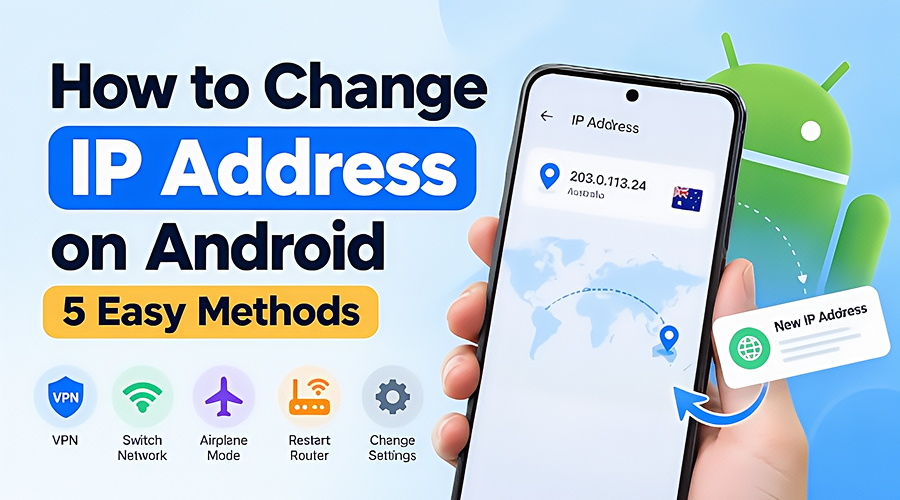
Changing your IP address on Android is easier than you might think. Whether you want more privacy while browsing, need to troubleshoot a network issue, or want an IP address from another country, there are several ways to do it.
You can use a VPN, switch between Wi-Fi and mobile data, reconnect to your network, or adjust your phone’s IP settings. Each method works a little differently, and the best choice depends on what you’re trying to achieve.
This guide walks you through five ways to change your IP address on Android, with step-by-step instructions you can follow on most smartphones.
How to Change Your IP Address on Android (5 Methods)
Android offers several ways to change your IP address. Some change the public IP address that websites see, while others change the private IP address your phone uses within a local network.
Here are five methods worth trying.
Method 1. Use a VPN to Change Your IP Address
Using a VPN is one of the easiest ways to change your public IP address on Android. A VPN routes your internet traffic through a remote server, so websites see the VPN server’s IP address instead of the one assigned by your usual network.
For example, X-VPN lets Android users connect to VPN servers in different locations. Its free version also supports manual server selection without requiring an account.
Here’s how to get started:
- Step 1: Download and install X-VPN from Google Play or its official website.
- Step 2: Open the app and continue with the free version.
- Step 3: Tap the location selector and choose your preferred VPN server.
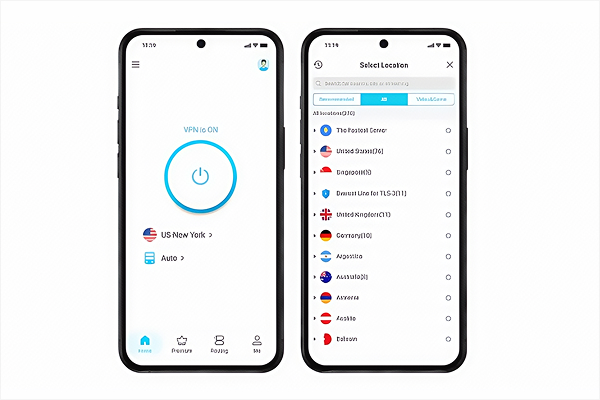
- Step 4: Tap Connect and approve the Android VPN connection request if prompted.
- Step 5: Once connected, open an IP checker in your browser to see your new public IP address.
You can also choose a server in a specific country. For example, if you’re traveling overseas and want an Australian IP address, a free Australia VPN can help you connect through an Australian server. X-VPN’s free Android app includes Australia among its available locations.
This method is especially useful when you want to change your visible IP address without adjusting your phone’s Wi-Fi or mobile network settings.
Method 2. Switch Between Wi-Fi and Mobile Data
Your Wi-Fi and mobile data connections typically use different public IP addresses because they connect through different networks.
Switching between them is a quick way to change the IP address websites see.
- Step 1: Open Settings on your Android phone.
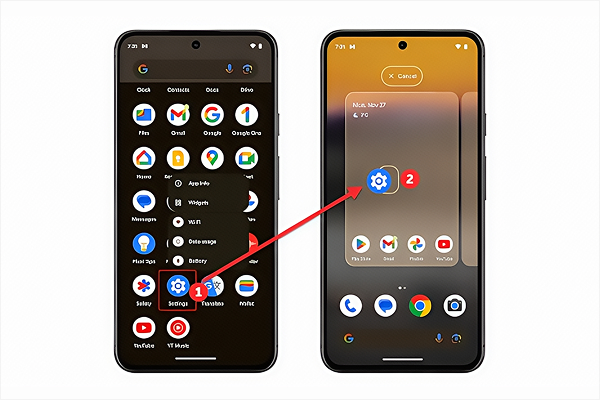
- Step 2: Go to Network & Internet or Connections, depending on your device.
- Step 3: Turn off Wi-Fi and make sure Mobile Data is enabled.
- Step 4: Open your browser and check your public IP address.
You should now see the IP address associated with your mobile carrier rather than your Wi-Fi network.
You can also reverse the process by reconnecting to Wi-Fi.
This method works well when you need a quick network change. However, your new IP address will depend on your internet provider or mobile carrier, so you won’t be able to choose its location.
Method 3. Turn Airplane Mode On and Off
Airplane Mode offers another way to refresh your mobile network connection.
When you enable Airplane Mode, your phone disconnects from cellular services. After switching it off, your device reconnects to the carrier’s network and may receive a different IP address.
- Step 1: Swipe down from the top of your screen to open Quick Settings.
- Step 2: Tap the Airplane Mode icon to enable it.
- Step 3: Wait around 30 seconds, then turn Airplane Mode off.
- Step 4: Wait for mobile data to reconnect and check your public IP address.
This method takes less than a minute and requires no additional apps.
Keep in mind that mobile carriers can assign the same IP address after reconnection. If your IP stays unchanged, try switching networks or using a VPN instead.
Method 4. Restart Your Wi-Fi Router
If your Android phone connects to your home Wi-Fi, restarting your router may change your network’s public IP address.
Many internet service providers assign dynamic IP addresses, which can change when the internet connection is re-established.
Here’s what to do:
- Step 1: Turn off your Wi-Fi router or internet modem.
- Step 2: Wait briefly before turning it back on.
- Step 3: Allow the internet connection to become active again.
- Step 4: Reconnect your Android phone to Wi-Fi.
- Step 5: Check your public IP address to see whether it has changed.
The result depends on how your internet provider assigns addresses. Some providers retain the same IP after a restart, while others may assign a new one.
If you have a static public IP address, contact your provider to discuss changing it.
Method 5. Manually Change Your Local IP Address
Android also allows you to manually configure the private IP address used on your Wi-Fi network.
Unlike the previous methods, this changes your phone’s local network address rather than the public IP visible to websites.
It’s useful when configuring home networks, connecting to certain devices, or resolving local IP conflicts.
- Step 1: Open Settings and navigate to Wi-Fi or Network & Internet > Internet.
- Step 2: Tap your connected Wi-Fi network to open its settings.
- Step 3: Find IP Settings under the advanced network options.
- Step 4: Change the setting from DHCP to Static.
- Step 5: Enter an available IP address within your network’s subnet, along with the correct gateway, network prefix length, and DNS settings.
- Step 6: Save your changes and reconnect if necessary.
For example, if your router uses the 192.168.1.x network, your phone might have a private address such as 192.168.1.105.
Choose an unused address that fits your router’s network configuration. An address already used by another device can cause connectivity problems.
The exact menu names may vary between Samsung, Google Pixel, Xiaomi, and other Android devices.
Public vs. Private IP Address: What’s the Difference?
Before changing your IP address, it helps to understand the difference between public and private IP addresses.
A public IP address identifies your internet connection to websites and online services. It’s generally assigned by your ISP or mobile carrier. When you connect through a VPN, websites typically see the VPN server’s public IP instead.
A private IP address identifies your phone within a local network, such as your home Wi-Fi.
Here’s a quick comparison:
| Feature | Public IP Address | Private IP Address |
| Purpose | Internet communication | Local network communication |
| Assigned by | ISP, carrier, or network provider | Router or local configuration |
| Visible to websites | Generally yes | Generally no |
| Changed using a VPN | Visible public IP changes | Usually remains unchanged |
| Manually configurable | Usually through the provider | Yes, in Wi-Fi settings |
If your goal is to change the IP address websites see, focus on your public IP. If you’re configuring devices on your home network, you’ll likely need to work with your private IP instead.
How to Check If Your IP Address Has Changed on Android
After trying one of these methods, you can quickly check whether it worked.
- Step 1: Open Chrome or another browser on your Android phone.
- Step 2: Search for “What is my IP address” or visit an online IP checker.
- Step 3: Write down your current public IP address.
- Step 4: Change your IP using one of the methods above.
- Step 5: Refresh the IP checker and compare the results.
If you’re using a VPN, the IP checker should normally display the VPN server’s address and its associated location.
To check your private IP address, open your connected Wi-Fi network’s details in Android Settings. Look for the IP Address field.
Why Is My Android IP Address Not Changing?
Sometimes your public IP address stays the same even after reconnecting to a network. Here are a few common reasons.
- Your ISP assigns the same address: Restarting a router doesn’t always generate a new public IP. Your provider may retain the previous assignment.
- Your VPN connection isn’t active: Open your VPN app and confirm that it shows Connected. Try another server if needed.
- You’re checking your private IP: Your Wi-Fi network settings may continue showing the same local address even when your VPN changes your visible public IP.
- Your static IP settings are incorrect: An invalid gateway or conflicting address can prevent Wi-Fi from working. Switch IP Settings back to DHCP to restore automatic configuration.
Checking your connection type first usually makes troubleshooting much easier.
Frequently Asked Questions
1. Can I Change My IP Address on Android Without a VPN?
Yes. You can switch between Wi-Fi and mobile data, toggle Airplane Mode, or restart your router. These methods may change your public IP address, although the result depends on your network provider.
You can also manually change your private IP address in Android’s Wi-Fi settings.
2. Does Airplane Mode Change Your IP Address?
It can. Turning Airplane Mode on and off disconnects and reconnects your cellular network. Your carrier may assign a new IP address when the connection returns.
However, some carriers keep the same address across multiple connections.
3. Is It Safe to Change My IP Address on Android?
Yes. Switching networks and connecting through a reputable VPN are common ways to change your visible IP address.
When manually configuring a static IP, use the correct network details. Incorrect settings may temporarily interrupt your Wi-Fi connection.
4. Can I Change My Android IP Address to Another Country?
Yes. Connect to a VPN server in your preferred country, and websites will generally see the public IP address associated with that server.
For example, connecting to an Australian VPN server can give your browser an Australian IP address even when you’re traveling abroad.
Your GPS location and account-based location information remain separate from your IP address.
5. Does Changing My IP Address Affect Internet Speed?
It depends on the method you use.
Switching from Wi-Fi to mobile data can change your speed based on signal strength and network congestion. A VPN may introduce some additional latency because traffic passes through another server.
Choosing a nearby VPN server with a reliable connection can help maintain good browsing performance.
Final Thoughts
Changing your IP address on Android is straightforward once you know which method suits your needs.
A VPN is a convenient option for changing your visible public IP and choosing a server location. Switching networks, toggling Airplane Mode, and restarting your router are useful alternatives when you want to refresh your connection.
For local network configuration, Android’s static IP settings give you more control.
Start with the method that matches your goal, check your new IP address, and you’re ready to go.