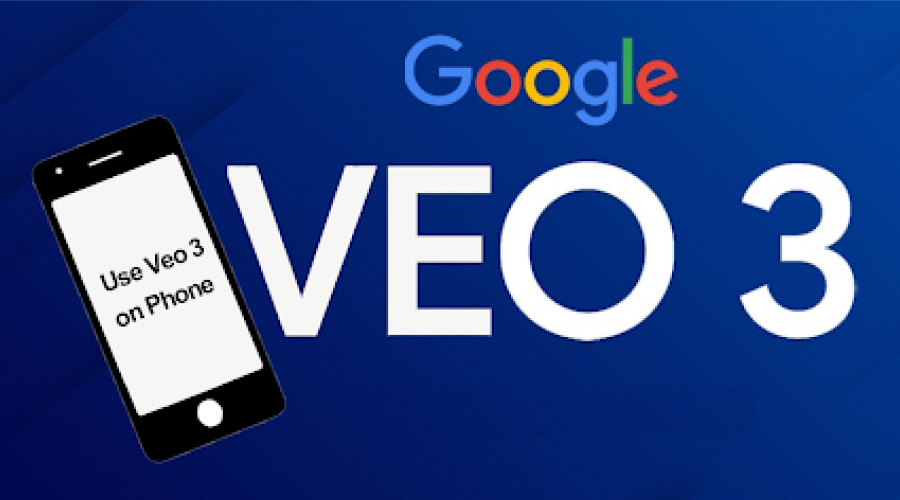
AI video generation has moved from desktop-only workflows to mobile experiences. With the arrival of Google’s Veo 3, many creators want to use this model to generate cinematic clips or social media-ready shorts directly from their phones.
Are you also trying to use Veo 3 for free on your phone? Now, you come to the right place. This post explores how to use the 3 video model on both iOS and Android for free. Let’s start trying.
Understanding Veo 3 Free Access on Mobile
Veo 3 is Google’s high-fidelity generative AI video model, designed to support outputs up to 4K resolution with realistic physics simulation and native audio integration. Currently, Google’s official distribution is primarily focused on enterprise and developer environments:
- Vertex AI & Google AI Studio: These platforms are technically robust but optimized for desktop browsers. On mobile, the interface density makes prompt engineering and parameter adjustment challenging.
- Regional & Subscription Tiers: Access is often gated behind waitlists or specific Google One AI Premium subscriptions, which may not yet be fully integrated into the standard Gemini mobile app for high-resolution video tasks.
For users requiring a streamlined mobile interface, the industry has seen the rise of AI Integrated Platforms. These third-party AI video generator platforms, such as TryVeo3.ai, EaseMate AI, Vidofy, and Canva, act as a technical bridge by hosting the model on cloud servers and providing a UI optimized for iOS and Android touchscreens.
How to Generate a Video using Veo 3 on Your Phone (iOS & Android)
This section shows you how to access Veo 3 for free using 2 available methods:
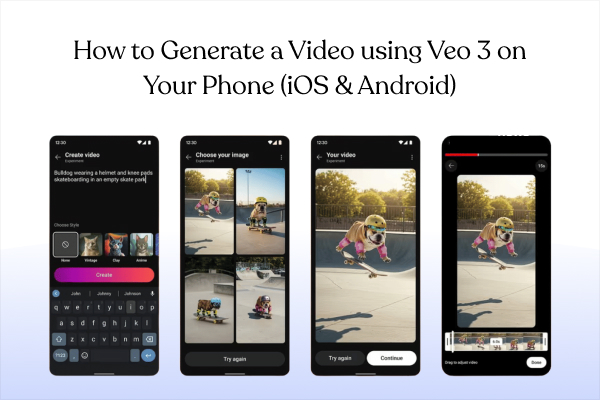
Method 1. Access Veo 3 via Google One
As discussed above, Google offers the official method to use the Veo 3 model for generating video. If you still want to experience Veo 3 through Google’s official consumer ecosystem, you can try accessing it via Google One. Currently, the model is integrated into the Google AI Pro plan (formerly Gemini Advanced).
To do that, visit the official Google AI Plans page, sign in with a personal Google account, then subscribe to the Google AI Pro (or Ultra) plan, which typically offers a one-month trial for new users. After that, access the Gemini app or web interface, look for the “Video” or “Flow” tab within the prompt bar, and enter your prompt to start generating a video.
Method 2. Try Integrated AI Video Generator
If you want to experience Veo 3 without access restrictions, you can try third-party aggregators like TryVeo3.ai, EaseMate AI, Vidofy, or Canvas, which provide a streamlined alternative. These platforms host popular AI video models on their specialized cloud servers, allowing mobile users to use Veo 3 free via credits or a limited trial.
To generate a video, you can visit the official websites of these tools or get the app (like Canva) on your phone, look for the Veo 3 video model, enter your prompts or upload an image into the generator, and then click “Generate” or a similar button to make the video. After that, you can download the video to your phone and refine or enhance it further using Video Editing Apps before sharing it across social platforms.
Top Creative Use Cases for Veo 3 on Mobile
With such easy access from your phone, Veo 3 video generator opens the door to many creative scenarios. On mobile, the use cases shift toward rapid content creation and social storytelling. Here are 5 ways you can use it today:
1. Instant Social Media Shorts
Transform a simple text idea into a 9:16 vertical video with synchronized audio. Perfect for influencers who need high-quality b-roll without a camera crew.
2. Photo-to-Video Animation
Upload a still portrait or landscape photo and use the “Image-to-Video” feature. Veo 3 will add realistic environmental motion, such as wind blowing through hair or water flowing.
3. Rapid Storyboarding for Filmmakers
Directors can use their phones on-set to quickly visualize a shot before setting up expensive equipment. It’s like having a 24/7 concept artist in your pocket.
4. AI-Powered Memes and Personal Gifts
Create personalized video messages with specific character dialogue. Because Veo 3 handles “Native Audio,” your characters can actually “speak” or interact with realistic soundscapes.
5. Educational & Explainer Clips
Teachers and content creators can turn complex topics into short visual scenes, such as space missions, historical battles, or physics demonstrations, making abstract ideas easier to understand and far more engaging for students。
In Conclusion
How to use Veo 3 for free on phones? This blog post discusses 2 simple methods for generating high-quality videos using the Veo 3 video model. If you want to experience the official ecosystem integration, Google’s AI Pro platform offers a standardized method. However, if you are seeking a way to bypass technical barriers, some integrated AI platforms offer a more streamlined, mobile-optimized interface.