The iOS 26 beta has arrived, and excitement is high. Apple’s latest update brings fresh features and sleek improvements. Everyone wants to try it early. But as many users quickly discover, the beta doesn’t always run smoothly.
Suddenly, your iPhone feels slower. Apps take longer to open. Scrolling feels heavy, and animations stutter where they once glided. Instead of speed and efficiency, you’re met with delays and glitches.
This is the price of living on the edge of technology. Beta versions are unfinished. They are made for testing, not perfection. Still, that doesn’t mean you must suffer through a laggy phone.
The good news? There are practical ways to fix it. In this guide, we’ll break down why iOS 26 beta slows down and show you ten proven methods to restore smooth performance.
Why is iOS 26 Beta Lagging?
Before fixing the lags, it is useful to understand why they happen. The iOS 26 beta is not yet a final and polished version. Bugs and performance are to be expected. Apple uses these testing cycles to collect data, eliminate issues, and perfect features.
These are the most common causes that make your iPhone feel slow on iOS 26 beta:
- Bugs and unfinished code: Beta software can be considered a house that is still being built. You can go around and visualize the possibilities, but be prepared to fall over some loose floorboards. The features are not yet optimized, and some parts of the code are held together by digital duct tape.
- Old app versions: Most of your apps were designed for iOS 25, not 26. It’s like trying to fit a square peg in a round hole. Sometimes it works, but other times, it leads to crashes or slowdowns. Make sure your apps are updated for iOS 26. If you’re using an older iPhone model or specific iPhone brands, you might experience more issues with app compatibility. Plus, don’t miss out on the Hidden iOS 26 Features that can sometimes offer a better experience when optimized properly.
- Limited storage: When your phone is cluttered with all the photos, applications, and other miscellaneous files, it will work even more slowly with beta software. iOS needs some space to breathe, especially when carrying experimental features.
- Background processes: You likely have dozens of apps that are working in the background, updating feeds, checking on updates, and synchronizing information. On stable iOS, this is okay. On beta iOS, it was like asking someone to juggle on a unicycle.
- Animations and effects: All those new visual features look amazing in the Apple demos, but they are straining your phone’s processor unit. Sometimes, your hardware is yet to match up with the demands of the software.
- Cache buildup: Your phone stores digital junk over time, old sites, temp files, and image caches. On a beta, this clutter can cause lagging.
Knowing the causes will help in finding an easy solution to the problem. So, let’s look at the solutions that will ensure your iOS 26 beta is faster and cordial.
10 Proven Ways to Fix iOS 26 Beta Performance Issues
1. Restart Your iPhone
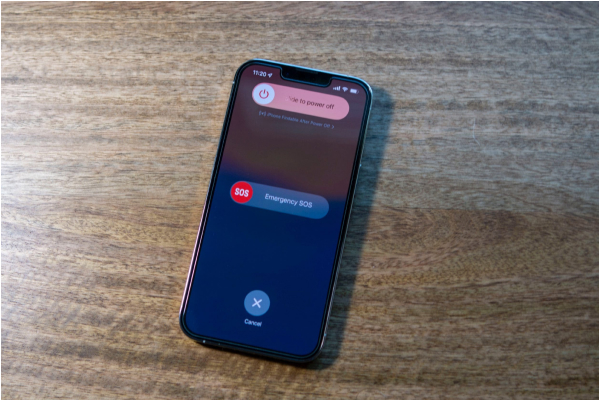
The simplest solution is to restart. Restarting erases temporal malfunctions and refreshes memory. It is hard to imagine how many minor problems could be solved by rebooting.
Steps to do this:
- Press and hold the Power button
- Swipe to turn off and restart your iPhone.
Beta users report instant performance improvements when they restart
2. Update to the Latest Beta Version
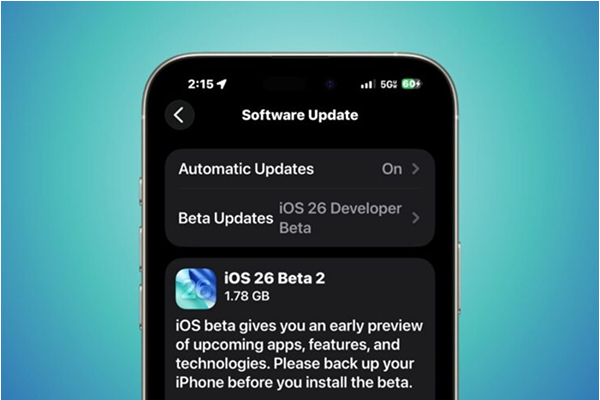
Before the official release of software, Apple updates multiple times with betas. Every release introduces bug fixes and stability enhancements. If you are running an older beta version, you may get stuck with bugs that have already been addressed by Apple.
Steps to do this:
- Go to “Settings” and then to “General”
- Tap on the “Software Update” and update to the latest beta version.
Even the slightest improvements can cause considerable changes in performance and dependability.
3. Free Up Storage Space
A full iPhone will always be slower, beta or not. iOS requires space to breathe. With a clogged storage, performance will be affected.
Steps to do this:
- Go to Settings
- Select the General tab, then iPhone Storage.
- Here you will see a list of what is occupying the space.
- Delete apps you are not using, old videos, or any files that are large.
It would be best to leave around 10-15 percent of storage free.
4. Disable Background App Refresh
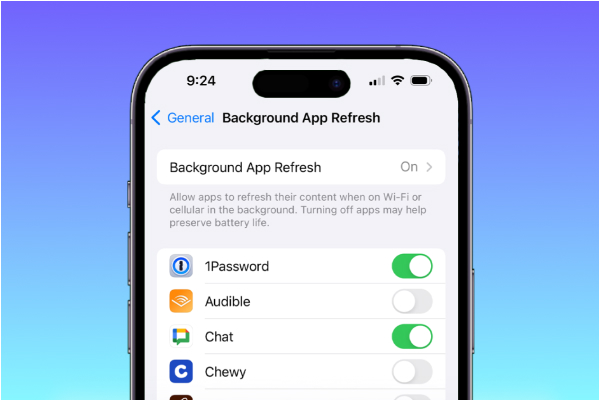
Many applications update content in the background. It takes up system resources, even though it is a convenient option. This can slow down your mobile phone on a beta build.
Steps to do this:
- Head to Settings, and then General
- Tap on the Background App Refresh.
You may also turn it off completely or select the applications that will be allowed to update. This alone can be a game-changer in accelerating the speed.
5. Clear Safari & System Cache
Safari stores website data and cookies over time. The system also generates cache files that bring down the performance. Removing them can create space and reduce lag.
Steps to do this:
- Go to Settings, then to Safari
- Tap on the Clear History and Website Data.
To make it cleaner, you can also free up app cache and even offload unused apps using system apps, as well.
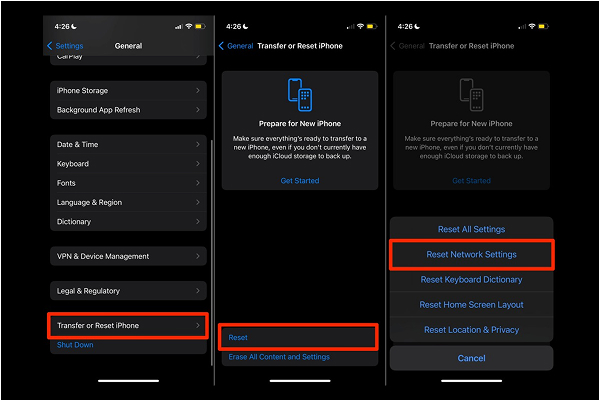
6. Reset All Settings
Another possible solution is to reset all your settings on the iPhone. This will not delete personal data. It has only the capacity to reset system preferences such as Wi-Fi passwords, wallpapers, and app permissions.
Steps to do this:
- You can go into Settings, then to General
- Tap on the Transfer or Reset iPhone
- At the very bottom, tap on Reset and then Reset all settings.
Several users report that after the reset, their device performs faster and cleaner.
7. Turn Off Unnecessary Animations
OS is known to have fluid animations. However, on a beta, these animations can be jerky. Switching them off can make your iPhone faster.
Steps to do this:
- Get to the Settings and tap on Accessibility
- Move to Motion and select Reduce Motion.
In addition, enable Reduce Transparency in the Display & Text Size section. This decreases load in the system and accelerates performance.
8. Disable Automatic Updates
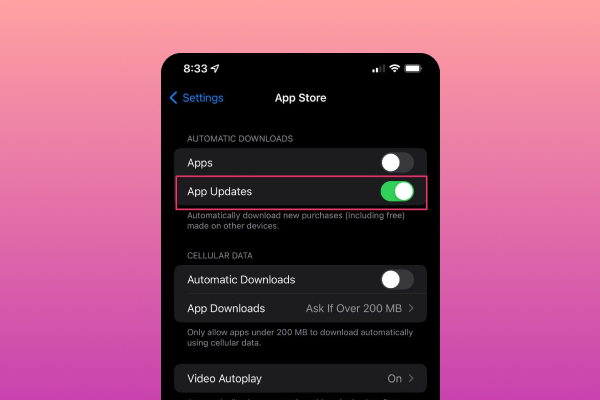
Automatic app and iOS updates may be running in the background. This may slow down your iPhone during the beta testing.
Steps to do this:
- Visit the Settings, tap on the App Store
- Move to App Updates and turn off App Updates.
The apps can still be updated manually when necessary. This ensures that your device does not end up slowing up.
9. Check for Rogue Apps
Not all of the apps are compatible with iOS 26 beta. Some may fail, others may keep refreshing, draining resources. If your phone is unusually slow, it may be due to an incompatible app.
Check on new apps that have been installed. Delete them one by one to see if you can improve the performance. You should also check the status of your applications and whether they have pending updates, as many developers are releasing beta-compatible updates. Some iPhone brands may face performance issues due to outdated or incompatible apps.
10. Factory Reset as a Last Resort
When nothing helps, a factory reset can be the last solution. This cleans all and returns your device to a new start. Although extreme, sometimes it works like magic to correct serious lag problems that are caused by corrupt files or buggy installs.
Steps to do this:
- Go to Settings, then to General
- Tap on the Transfer or Reset iPhone
- Erase all content and settings.
You must create a backup of your data before doing this. After resetting, reinstall the iOS 26-beta again.
What to Do If Nothing Works
In some cases, no matter what you do, the beta can remain unstable. This is because it’s not meant to be perfect. In case performance problems are too disruptive, you have two options:
- Wait for the next beta release by Apple: Bugs are fixed promptly during testing periods
- Downgrade it to iOS 25: If you highly depend on your iPhone to perform daily tasks, then probably going back to iOS 25 may better serve you until the final release of iOS 26.
The important point to remember is that lag is normal in a beta. In this case, you are basically a tester who assists Apple in perfecting the system.
Conclusion
Running iOS 26 beta is exciting, but it comes with some flaws. Slowdowns, delays, and bugs are a part of the experience. However, with appropriate fixes, you do not have to struggle with a slow iPhone.
Restarting, cleaning up cache, freeing memory, and adjusting settings can be really helpful. And, in case all fails, you may go back to iOS 25 until a stable release is out.
Consider beta a glimpse into the future. It is not perfect yet, but following these steps, you can make the process easier. That is how you can enjoy new features without being slowed down by performance issues.