

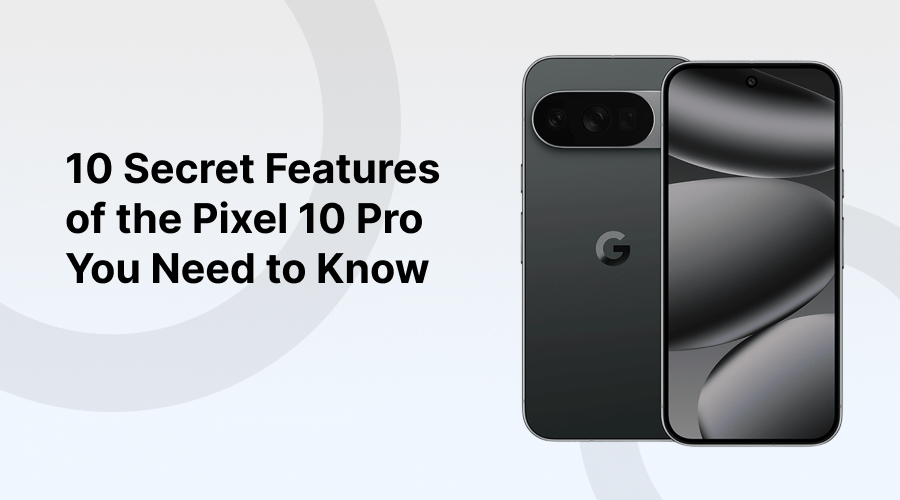
Every year, phones get faster, shinier, and more expensive. But here’s the truth: most people only use a fraction of what their device can really do. The Pixel 10 Pro is a perfect example. It looks like a phone built for camera lovers, but it’s so much more.
Behind the smooth glass and titanium frame, there are secret features that the vast majority of users are unaware of. They are not silly gimmicks, but features that radically change how you use your phone every day. Minor details that could save you more time, boost security, and even totally change your photos.
If you have just recently bought a Pixel 10 Pro or are considering the upgrade, you must know the hidden features. The magic of this device does not lie in the specifications themselves, but in the experience.
So, let’s take a closer look at the 10 secret features of the Pixel 10 Pro that make it shine in the areas you did not expect.
1. Magic Eraser: Instantly Clean Up Your Photos
Magic Eraser is like having Photoshop in your pocket. Take a photo, press the object you do not want in the photo, e.g., a stranger in the background, and it vanishes. The AI fills the gap in such a way that you would never imagine that something was there.
Photos are memories, and distractions destroy them. Magic Eraser lets you have clean, much professional-looking shots without having to edit them. There is no need to upload to an app or invest in software. It’s instant.
How to use it:
- Open Google Photos: The first step is to open the Google Photos application on your Google phone. Select the picture to be edited.
- Tap on Edit: At the bottom of the screen, tap the Edit button to open the editing tools.
- Go to Tools: Move to the Tools section. And here you will discover sophisticated choices.
- Select Magic Eraser: Tap on Magic Eraser. The app will begin to scan your photo to identify things that can be removed. Point or Circle The Object. Draw around the thing you do not want using your finger. When it is small, you can also simply tap on it.
- Watch It Disappear: Google Photos will clean the photo immediately. The object disappears, and naturally, the background fills itself in.
- Experiment with Different Photos: Test it in group photos, vacation photos, or even self-photos with distracting backgrounds.
2. Live Translate: Speak Any Language Instantly
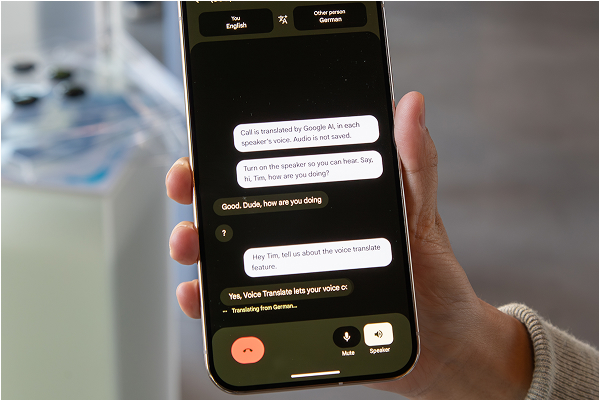
Live Translate will make your Pixel 10 Pro look like a real-time translator. Point your camera at the text and it translates immediately. Talk to someone in another language, and the conversation on both sides appears as subtitles on the phone.
This feature removes the language barriers when you are either visiting another country, placing an order in Chinatown, or helping your neighbor. It is easy, fast, and it does not always need the internet.
How to use it:
- Open Settings: Open the Settings application on your phone.
- Tap on System: Go down the menu and choose System.
- Select Live Translate: Tap Live Translate to open it.
- Turn It On: Toggle it on to turn on Live Translate.
- Choose Your Languages: Select the languages to be translated.
- Enable Across Apps and Calls: You can configure Live Translator to operate in apps, text messages, and even in voice calls.
3. Hold for Me: Never Wait on Hold Again
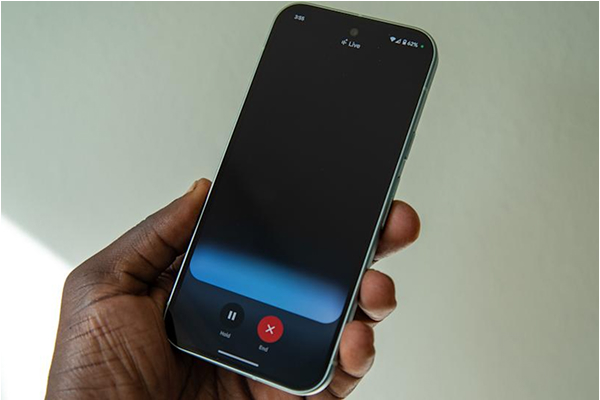
Hate waiting for customer service? With Hold for Me, Google Assistant waits on hold so you don’t have to. When a human finally answers, the phone notifies you.
Time is valuable. You can go about your day instead of spending 20 minutes listening to bad music. Hold for Me lets you regain time.
How to use it:
- Make Your Call: Call a toll-free or business number as usual.
- Tap Hold For Me: When you are put on hold, you will see a Hold For Me button on the screen. Tap it.
- Let Pixel Wait for You: Your Pixel will stay on the line and handle the waiting while you do something else.
- Get Notified: Once a real person reappears in the call, your phone will buzz to inform you that it is time to speak.
4. Extreme Battery Saver: Keep Going Longer
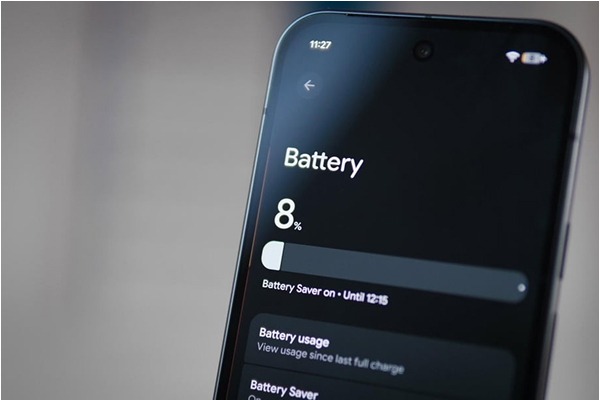
Extreme Battery Saver limits the power usage on your phone to the lowest possible level. It blocks out all of the extra applications and services, leaving you with the bare minimum calls and texts, and only select applications that you want.
Perfect in crises, on the highway, or when it is difficult to charge. There is no need to worry about the need to find a charging outlet; your battery has a capacity of 48 hours.
How to use it:.
- Open Settings: Go to your phone’s Settings app.
- Select Battery: Scroll down and tap Battery.
- Tap on Battery Saver: Selecting Battery Saver.
- Enable Extreme Battery Saver: Tap Extreme Battery Saver, and make sure it is turned on.
- Pick Essential Apps: Choose which applications to continue to use when the mode is on. By this, you retain the most important things.
- Save Power Instantly: When it is on, your phone reduces background activity and extends your battery life immediately.
5. Adaptive Battery & Charging: Smarter Power Management
Adaptive Battery can remember how you use your phone and adjust the volume of energy used. Meanwhile, Adaptive Charging charges your phone progressively during the night to be able to sustain long-term battery life.
Batteries degrade over time, yet Google guarantees your Pixel remains healthier over time with the help of the Google system. And it offers you more hours of use each day without you lifting a finger.
How to use it:
- Open Settings: Go to your phone’s Settings.
- Go to Battery: Go down and touch Battery.
- Tap Adaptive Preferences: Within the Battery menu, select Adaptive Preferences.
- Turn On Adaptive Charging: Turn on Adaptive Charging to enable the option.
- Leave It On Overnight: When charging at night, leave it on. Your phone knows your habits and schedules the charge in such a way that it reaches 100 percent just before you wake up.
6. Customizable Always-On Display: Show What Matters
The Pixel 10 Pro’s always-on display isn’t just a clock. You are able to personalize it with notifications, music, calendar events, or even fun designs.
Rather than swiping your phone a hundred times in a day, you can receive fast information at a glance. It is time-saving, keeps you abreast, and is fashionable.
How to use it:
- Open Settings: Begin by opening the Settings application on your phone.
- Go to Display: Swipe and tap Display.
- Tap Lock Screen: Go to the display option and click Lock screen.
- Enable Always Show Time and Info: Turn on the Always Show Time and Info.
- Choose What to Show: Choose what you want on your lock screen: time, messages, music, or simply the basics.
7. Quick Tap: Shortcuts at Your Fingertips
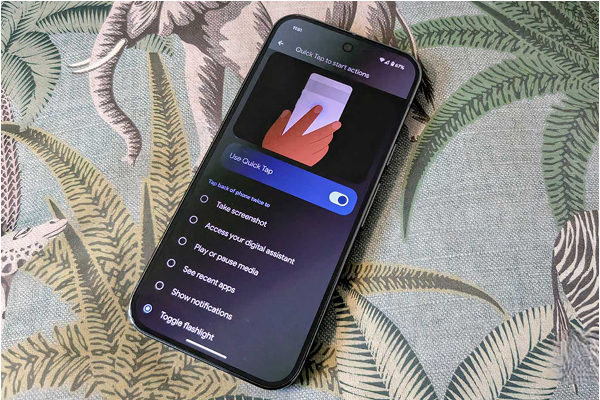
Quick Tap is another hidden feature in which you can double-tap the back of your phone and invoke actions. You are able to start the camera, open an application, capture screenshots, or control media.
It is quicker than page flipping through menus. Since the features that you like are only two taps away with Quick Tap.
How to use it:
- Open Settings: Go to your phone’s Settings app.
- Select System: Scroll down and tap System.
- Tap on Gestures: Inside System, choose Gestures.
- Turn On Quick Tap: Find Quick Tap and switch it on.
- Pick Your Shortcut: Choose what Quick Tap will do; open the camera, turn on the flashlight, take a screenshot, or even launch Google Pay.
- Give It a Try: Double-tap the back of your phone and watch your shortcut spring into action.
8. Recorder with Real-Time Transcription: Never Miss a Word
The Pixel Recorder app is not a mere audio recorder, but transcribes audio in real-time. It identifies various speakers and produces searchable transcripts.
Meetings and lectures can be recorded by students, journalists, or professionals without losing details. And it is offline, meaning it comes with privacy.
How to use it:
- Open the Recorder App: Open the Recorder application on your mobile phone.
- Start Recording: Press the record button to start.
- See Live Transcription: The transcription appears on the screen in real-time as you speak.
- Search Later: You can use the search bar to enter keywords when you are done. The app will also bring you directly to the point of the recording that you require.
9. Hidden Privacy & Security Tools: Protect Your Data
The Pixel 10 Pro is packed with invisible security. With face and fingerprint unlock fusion, and VPN by Google One, the phone not only keeps you safe but also does not slow you down.
Privacy is everything in an era of data breaches and fraud. The Pixel series is renowned as being at the forefront in terms of Android security, and the 10 Pro is no different.
How to use it:
- Open Settings: Start by going into your phone’s Settings app.
- Go to Security & Privacy: Scroll down and tap Security and Privacy.
- Check App Permissions: The App Permissions Manager will open and show you which apps have access to logs such as your camera, your location, or your contacts. Adjust them as needed.
- Run Safety Check: Check on your account security, emergency contacts, and sharing settings with the help of Safety Check.
- Enable VPN: Activate a VPN to keep your browsing private and more secure.
10. Google Assistant Routines: Automate Your Day
Routines will allow Google Assistant to automatically process daily tasks. Wake up, open your phone, and your phone will be able to read the weather, switch on smart lights, and play your morning playlist, all in a single command.
Automation saves mental energy. The Pixel not only does the little things every day, but it does it on your behalf. It is like having an assistant that never forgets.
How to use it:
- Open Google Home: Launch the Google Home app on your phone.
- Go to Routines: Tap on Routines from the menu.
- Set a Trigger: Select a trigger, such as Good morning, I am home or make a new one.
- Select Actions: Choose what you would like your phone or smart devices to do, such as turn on or off lights, see what is on your calendar, play music, or more.
- Let Your Pixel Handle It: When it is set up, your Pixel will automatically take the actions each time the trigger happens.
Conclusion
The Pixel 10 Pro is not just a camera powerhouse or a shiny piece of technology; but it is a problem solver. There are so many features in this phone that are hidden and actually matter, such as cleaning up photos with Magic Eraser or skipping hold music with Hold for Me, extending your battery with Extreme Saver, or automating your day with Routines.
These aren’t flashy gimmicks. They are intelligent tools that are meant to simplify life and make it faster and smarter. And when you start to use them, you will wonder how you ever lived without them.
So if you have recently purchased the Pixel 10 Pro, research more. Explore these secret features. The magic of this phone does not lie in the specifications but in the details, which make your day better and brighter.


